How to allocate your surplus
Split each month's surplus across buckets and goals, then see where it shows.
Screenshots use fictional accounts and example amounts. Select any image to open it full size.
What Allocate does
Your surplus is what’s left of your income in a regular month after bills, essentials and discretionary spending. Allocate is where you give it a job. You split each month’s surplus between buckets (your debt plan, pension, investments or a Lifetime ISA) and goals (a holiday or a new car, for example).
Allocate plans where the money should go. It doesn’t move money at your bank. Any transfers are yours to make. Anything you don’t place stays as free cash.
Open Allocate
Allocate opens from three places:
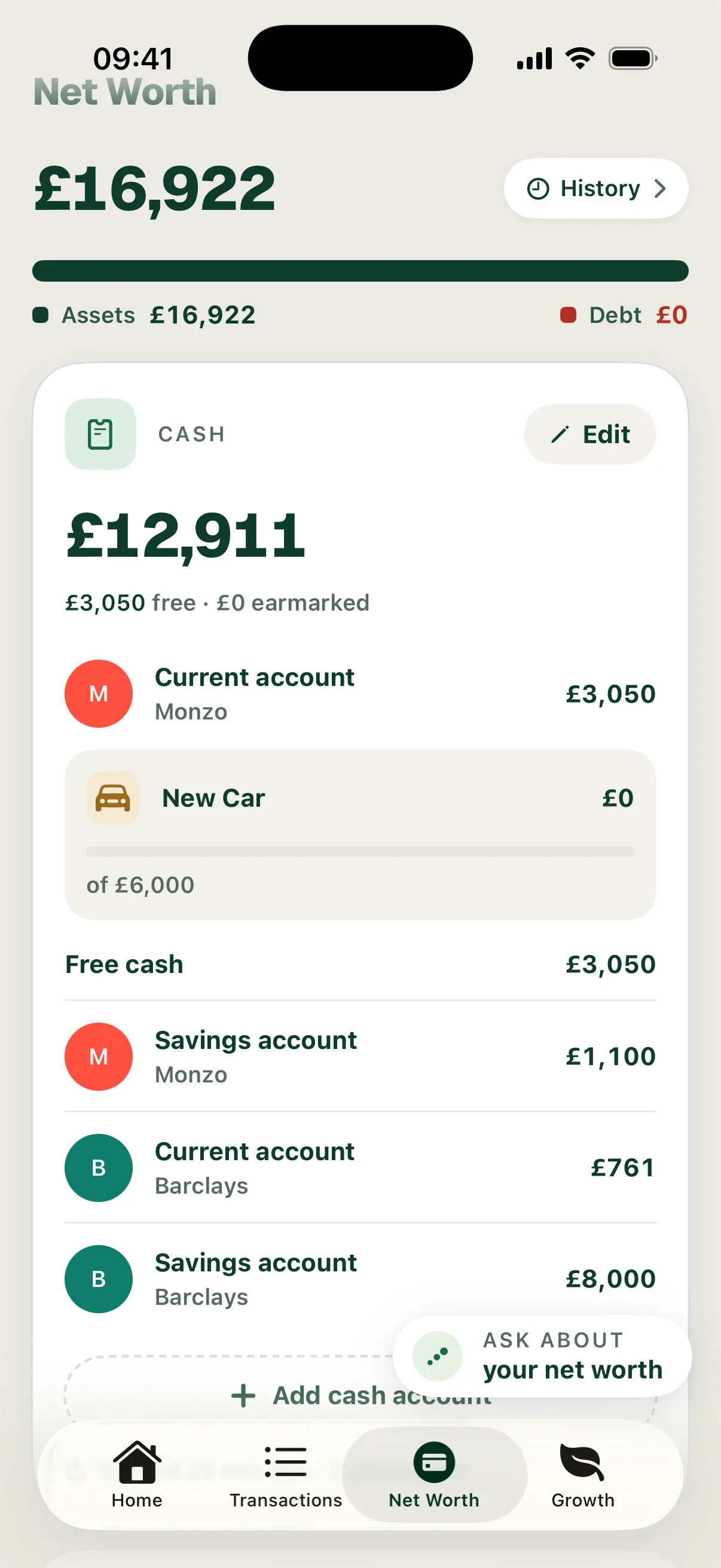
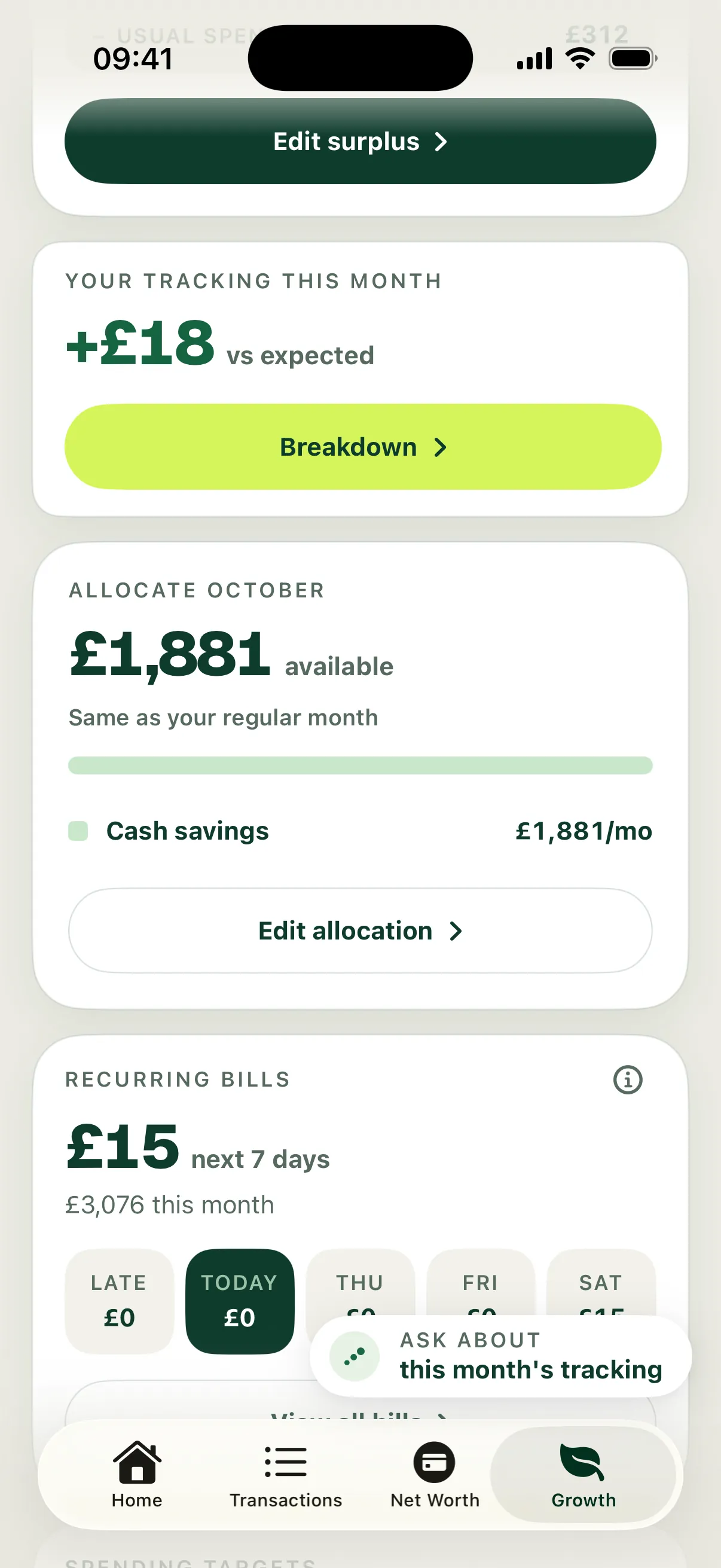
- Growth: the Allocate October card shows what’s available this month. Choose Edit allocation.
- Net Worth: a virtual bucket’s Allocate link opens Allocate at the row that pays into it.
- Your monthly review: when a pot fell short, a goal was completed or extra cash stayed in your account, the review offers Go to Allocate.
You can only allocate once your surplus is set up. Until then, Allocate explains what’s missing, for example Nothing to allocate yet.
Read the top card
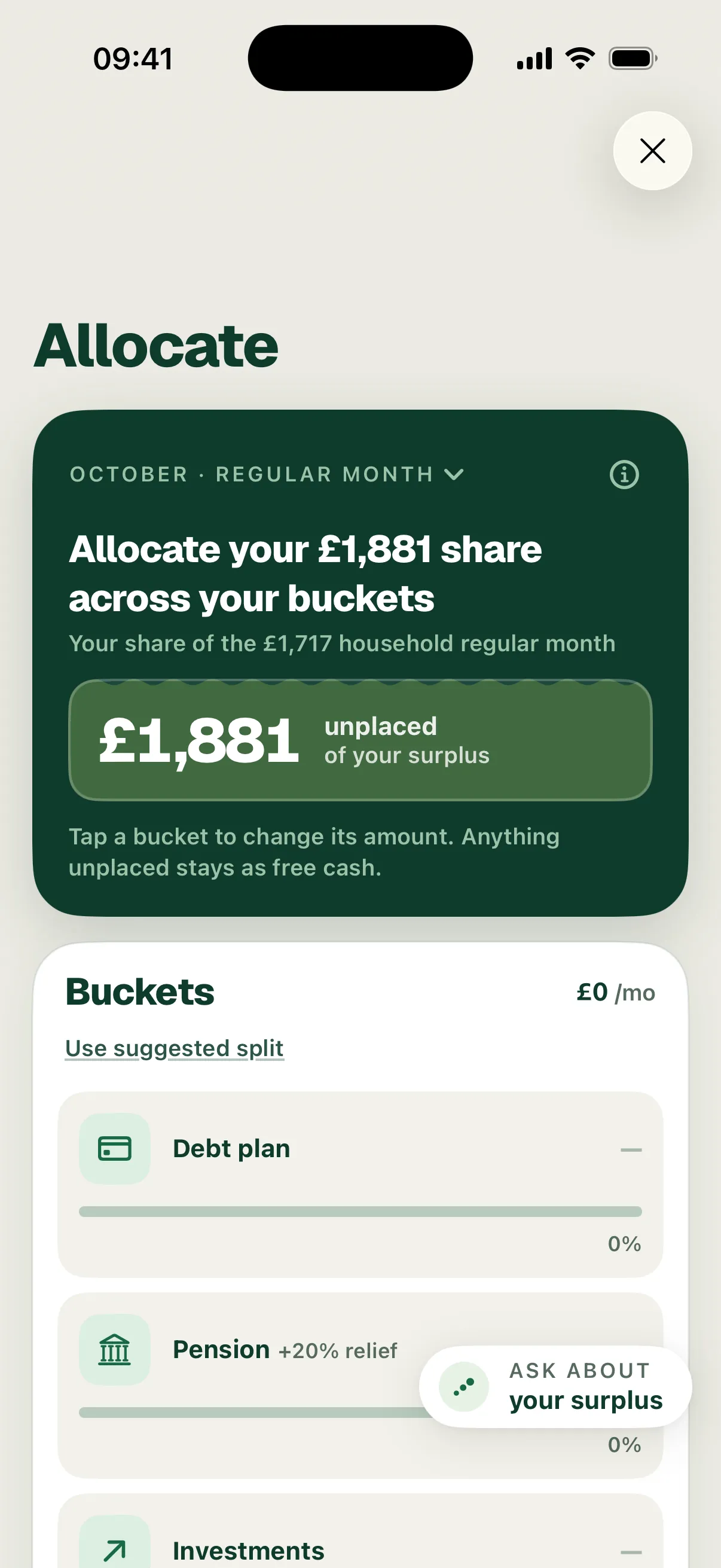
The card at the top shows the month you’re allocating and how much is left to place.
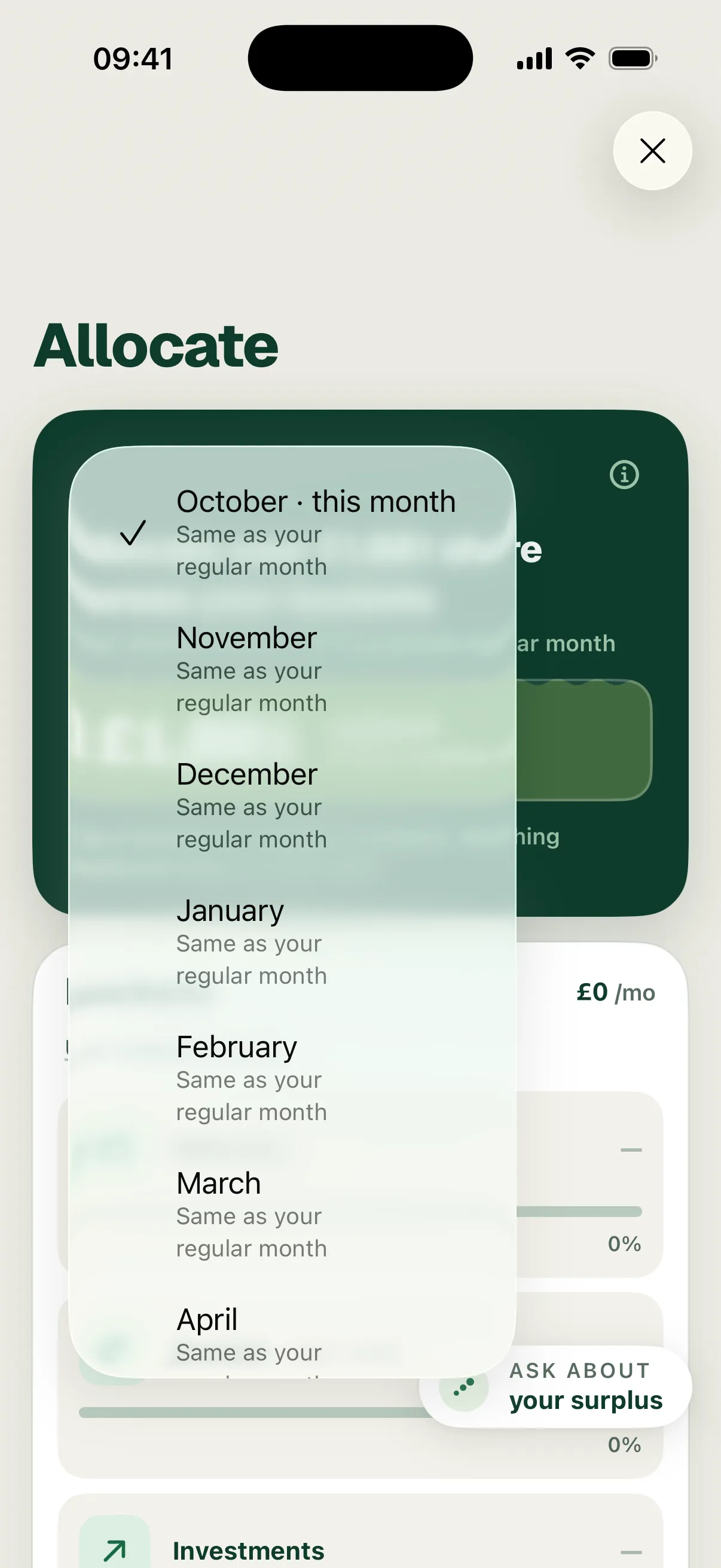
- The month line reads October · Regular month when this month matches your plan. A month with more or less surplus says so, for example “£300 above your regular month”. Tap it to pick another month.
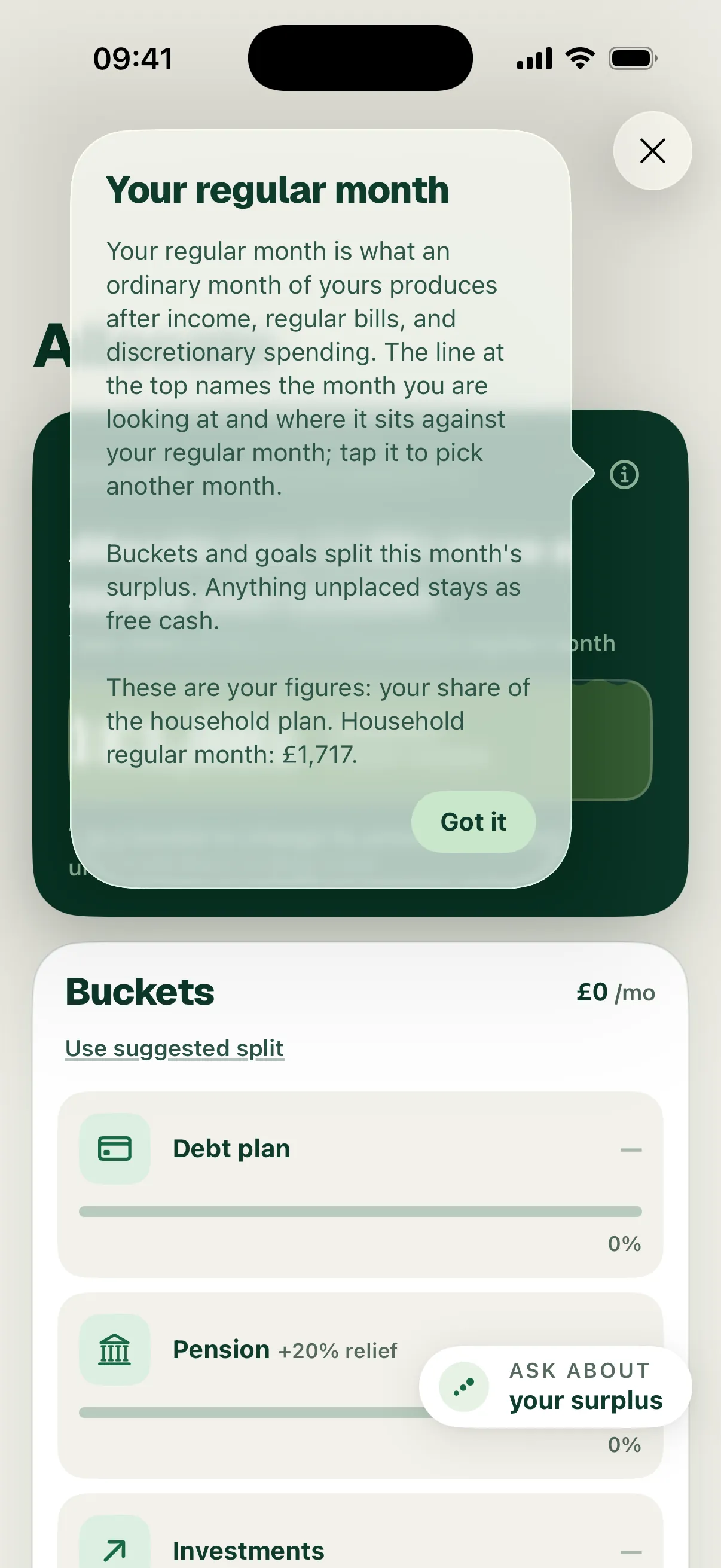
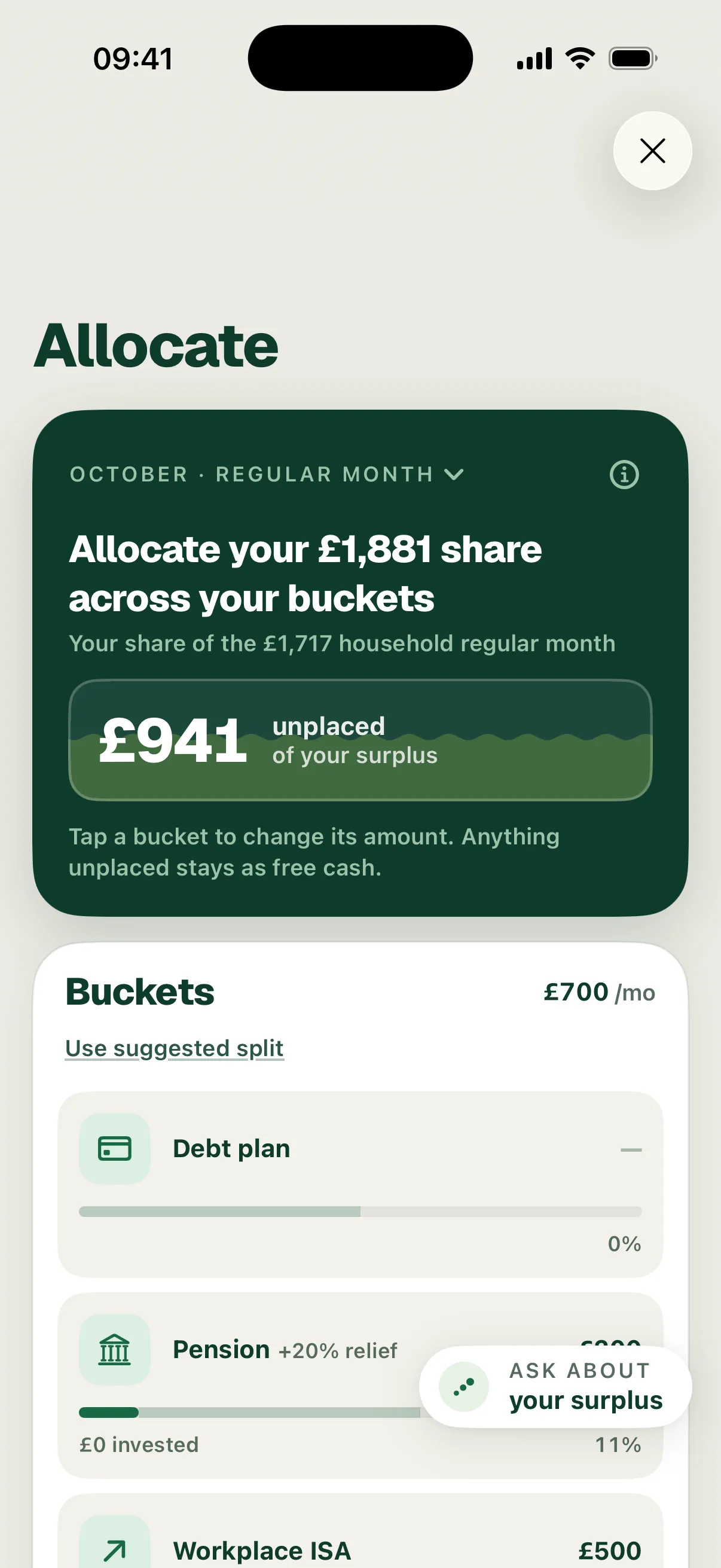
- The headline reads “Allocate your £1,881 share across your buckets”. If you share money with a partner, you allocate your share. The line under it gives the household figure: “Your share of the £1,717 household regular month”.
- The pill shows what’s still free, for example £1,881 unplaced. It reads All placed when every pound has a job.
Tap the (i) for Your regular month, which explains where the figure comes from.
Set an amount for each bucket
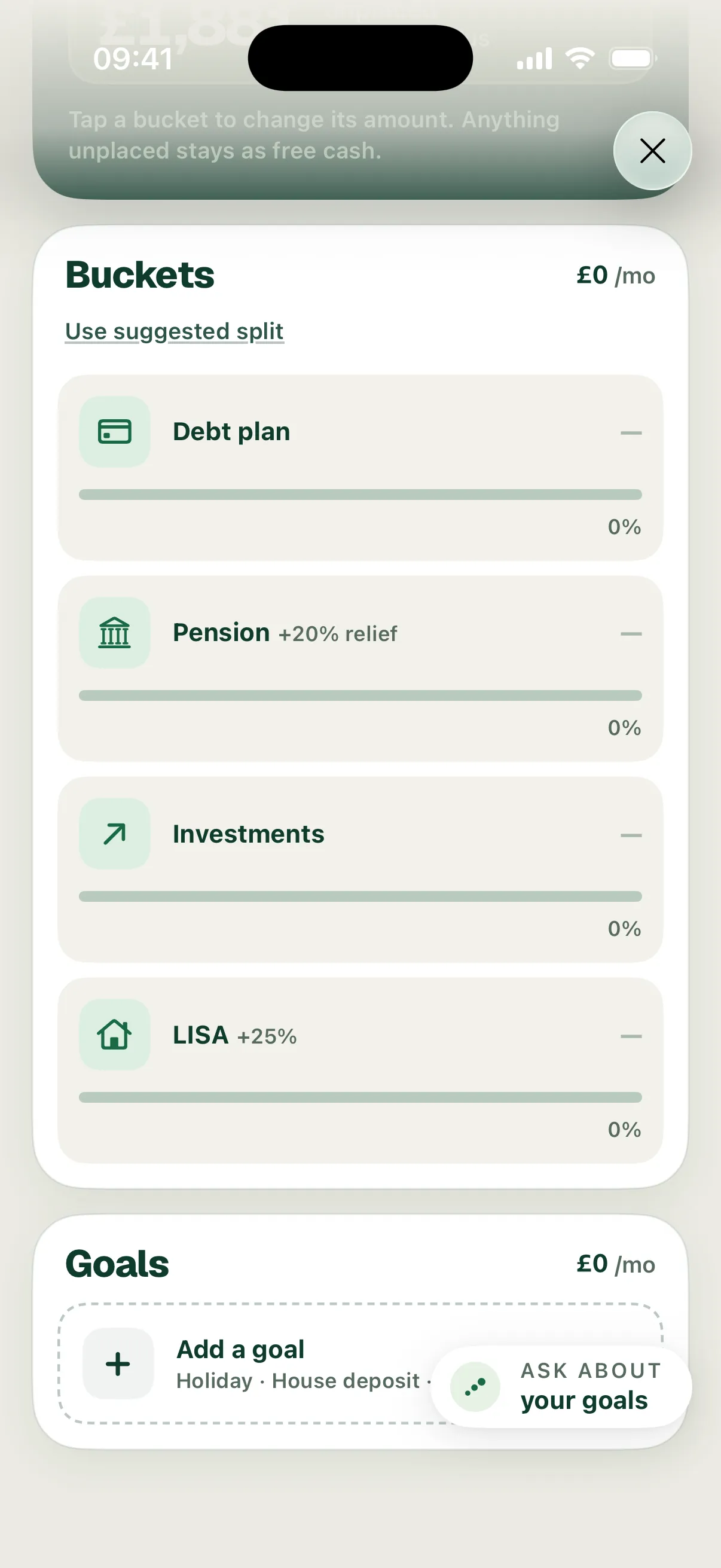
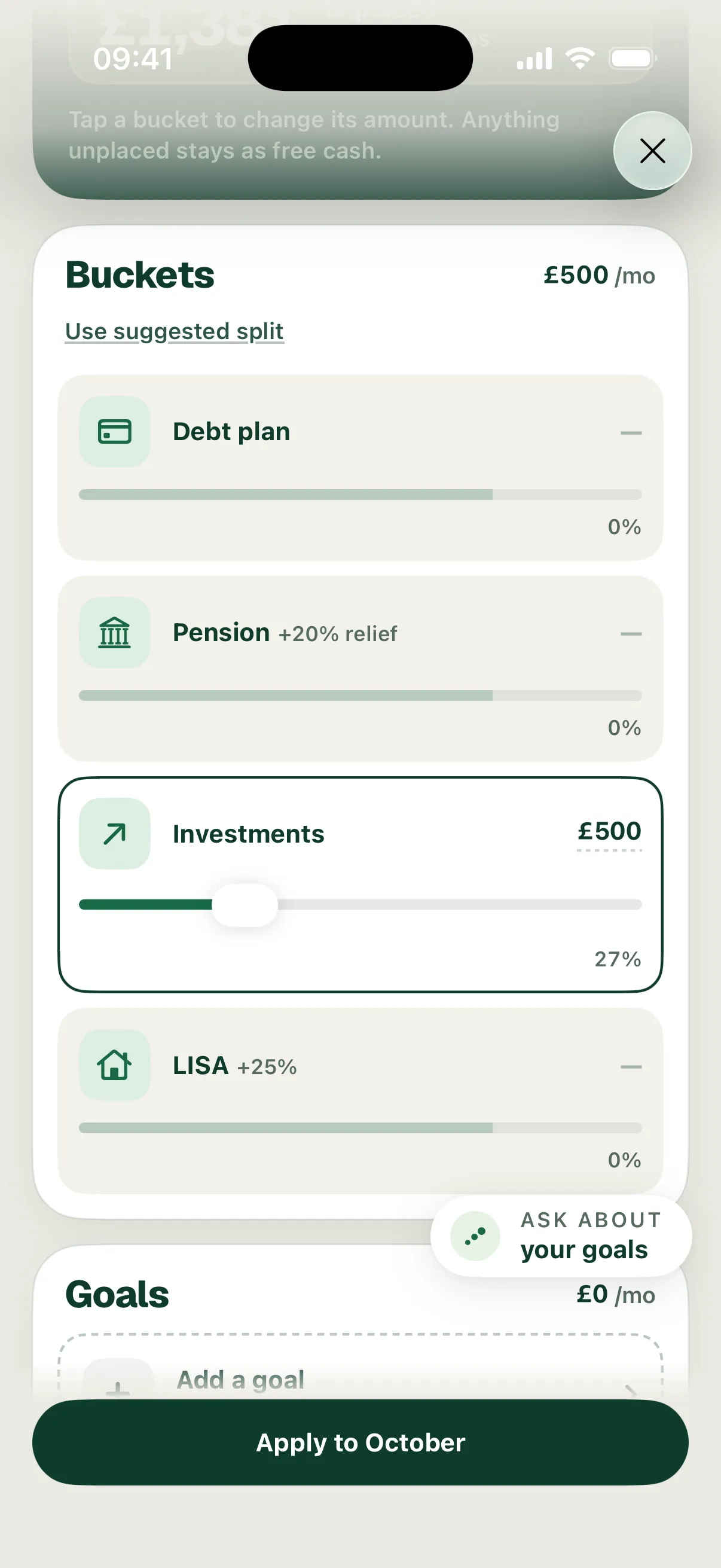
Buckets lists where money can go each month: Debt plan, Pension, Investments and LISA (Lifetime ISA). The Pension and LISA rows show the tax top-up you’d get: +20% relief and +25%.
In Allocate, a bucket is a kind of destination. A virtual bucket is one account behind it, such as your Workplace ISA behind Investments.
- Tap a bucket to open it.
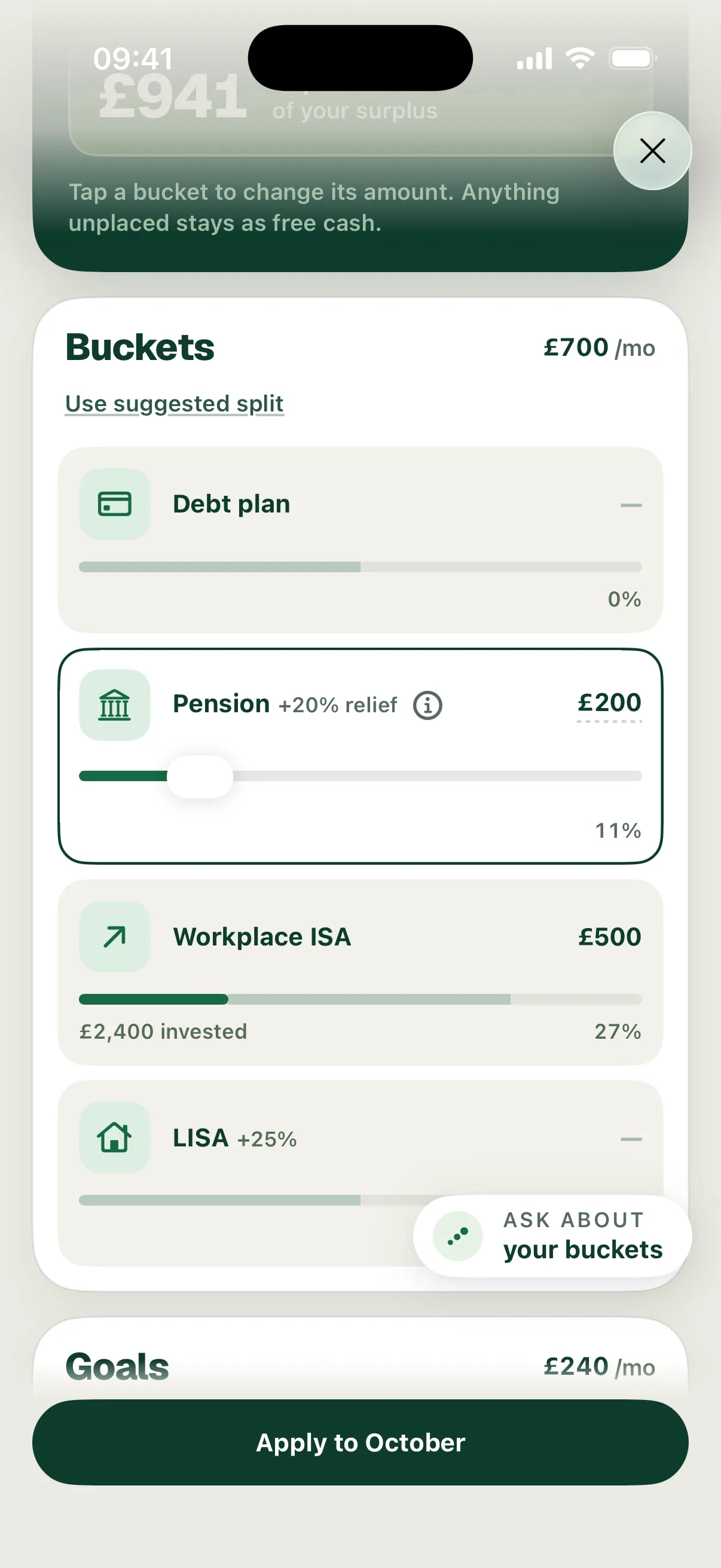
- Type a monthly amount or drag the slider. The slider stops at what the month can fund, so you can’t place more than your surplus.
- Repeat for any other bucket. Use suggested split fills them in from Surplus’s suggestion in one tap.
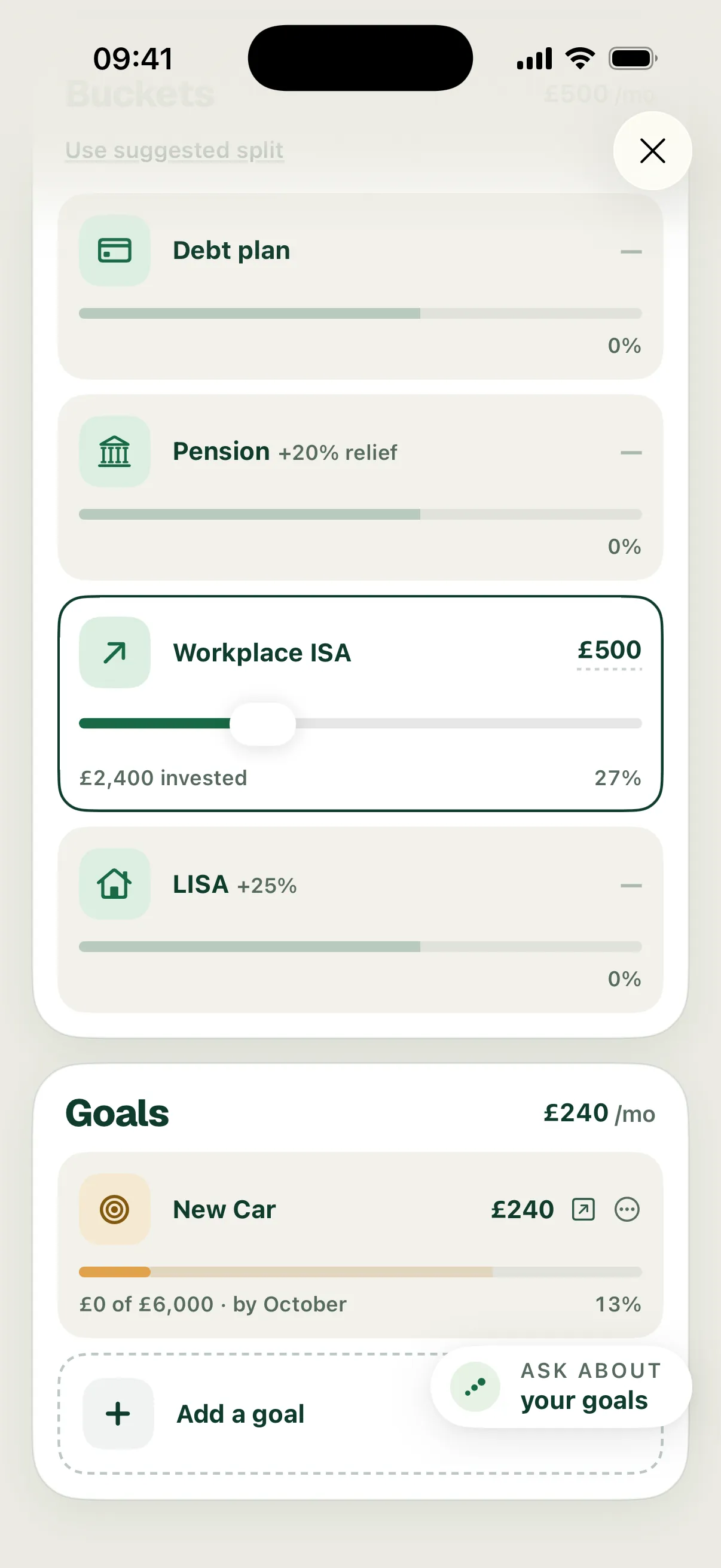
When one virtual bucket sits behind a row, the row takes its name. In the example, Investments became Workplace ISA with “£2,400 invested”.
Add a goal
Goals save towards something specific by a date. You choose what and when; Surplus works out the monthly amount.
- Under Goals, choose Add a goal.
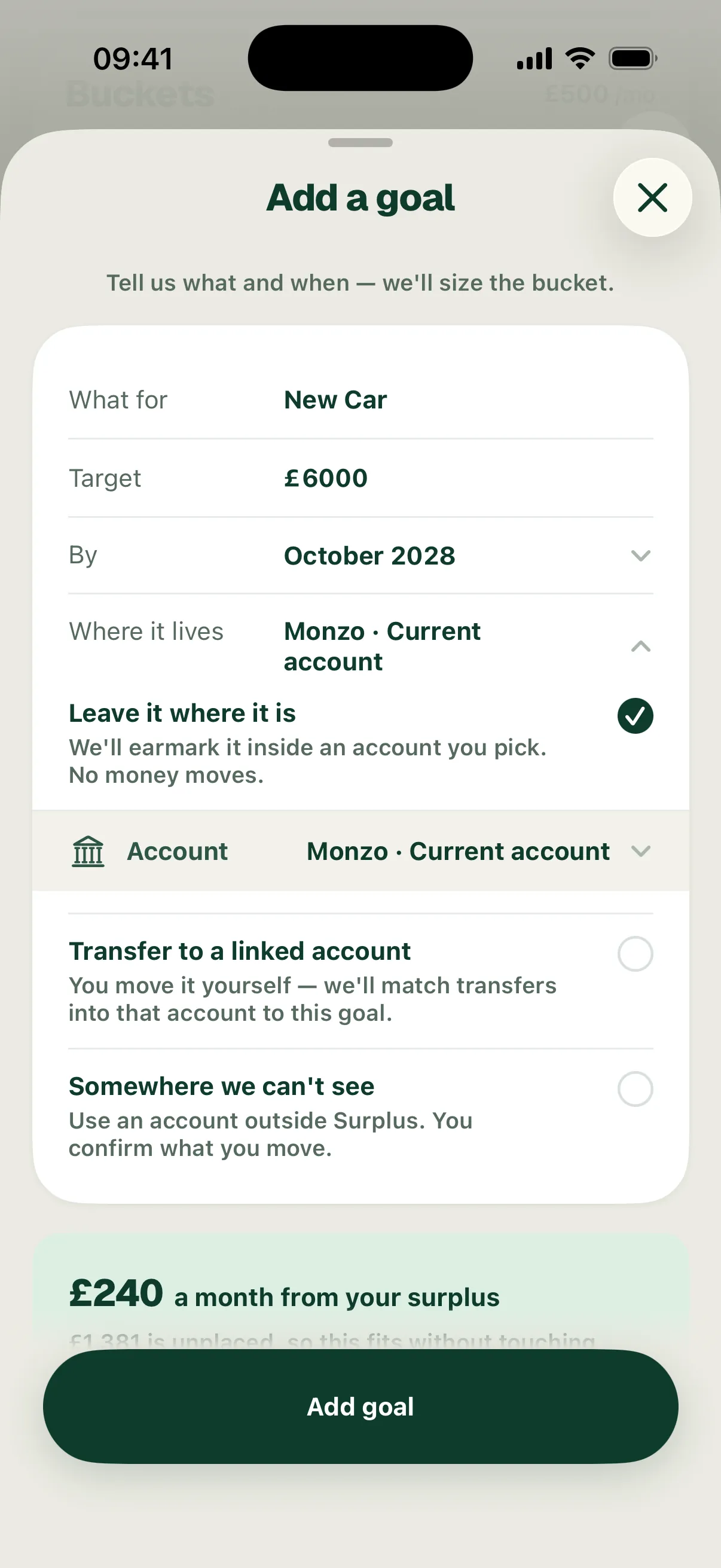
- Fill in What for, the Target and By, the month you want it.
- Under Where it lives, choose one:
- Leave it where it is: Surplus earmarks the money inside a linked account you pick. No money moves.
- Transfer to a linked account: you move the money yourself. Surplus matches transfers into that account to the goal.
- Somewhere we can’t see: for an account outside Surplus. You confirm what you move. It shows as a virtual bucket.
- Check the monthly amount and choose Add goal.
The example adds a New Car goal: £6,000 by October 2028, earmarked in the Monzo current account. That’s “£240 a month from your surplus”. With £500 already set for Workplace ISA, Surplus confirms it fits: “£1,381 is unplaced, so this fits without touching another bucket.”
Apply your allocation
Bucket amounts stay as a draft until you choose Apply to October at the bottom of the screen. A goal is saved as soon as you choose Add goal. After applying, the example places £700 in buckets (Workplace ISA £500, Pension £200) and £240 in the New Car goal, leaving £941 unplaced as free cash.
If your buckets ever ask for more than the month has, for example after your surplus drops, the pill shows how much you’re over and Apply stays off until you lower a bucket. Surplus suggests ways out, such as taking from another bucket, lowering a goal or finding room in your plan.
Where your allocation shows
- Growth gives a summary of the month’s allocation on the Allocate card.
- Net Worth shows each goal’s progress. The New Car earmark sits under the Monzo current account as £0 of £6,000 until money builds up.
- Your monthly review reports how each pot did. Your allocation needs no decision at month end. If a pot fell short or a goal finished, choose Go to Allocate and adjust from there.
To change your surplus itself, use Edit surplus in Growth. See How to set up your surplus.