Review bills
Check bills due, fix a bill's frequency or type and stop or restart a bill.
Screenshots use fictional accounts and example amounts. Select any image to open it full size.
Find your bills
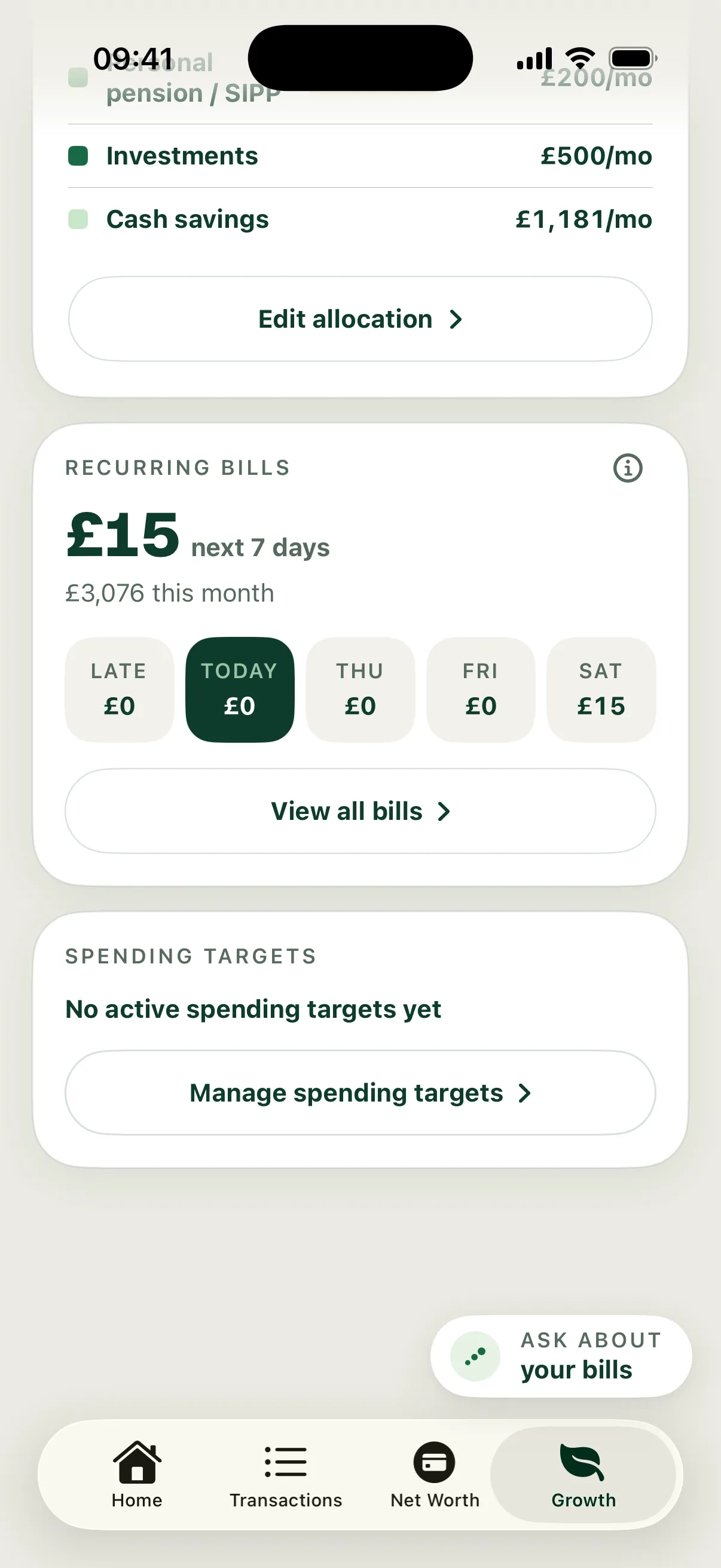
Open Growth and scroll to Recurring bills. The card shows what’s due in the next 7 days, the month’s bill total and a strip of the days ahead, including anything late. In the example, £15 is due in the next 7 days and bills come to £3,076 this month.
Choose View all bills to open the full list.
Read the list
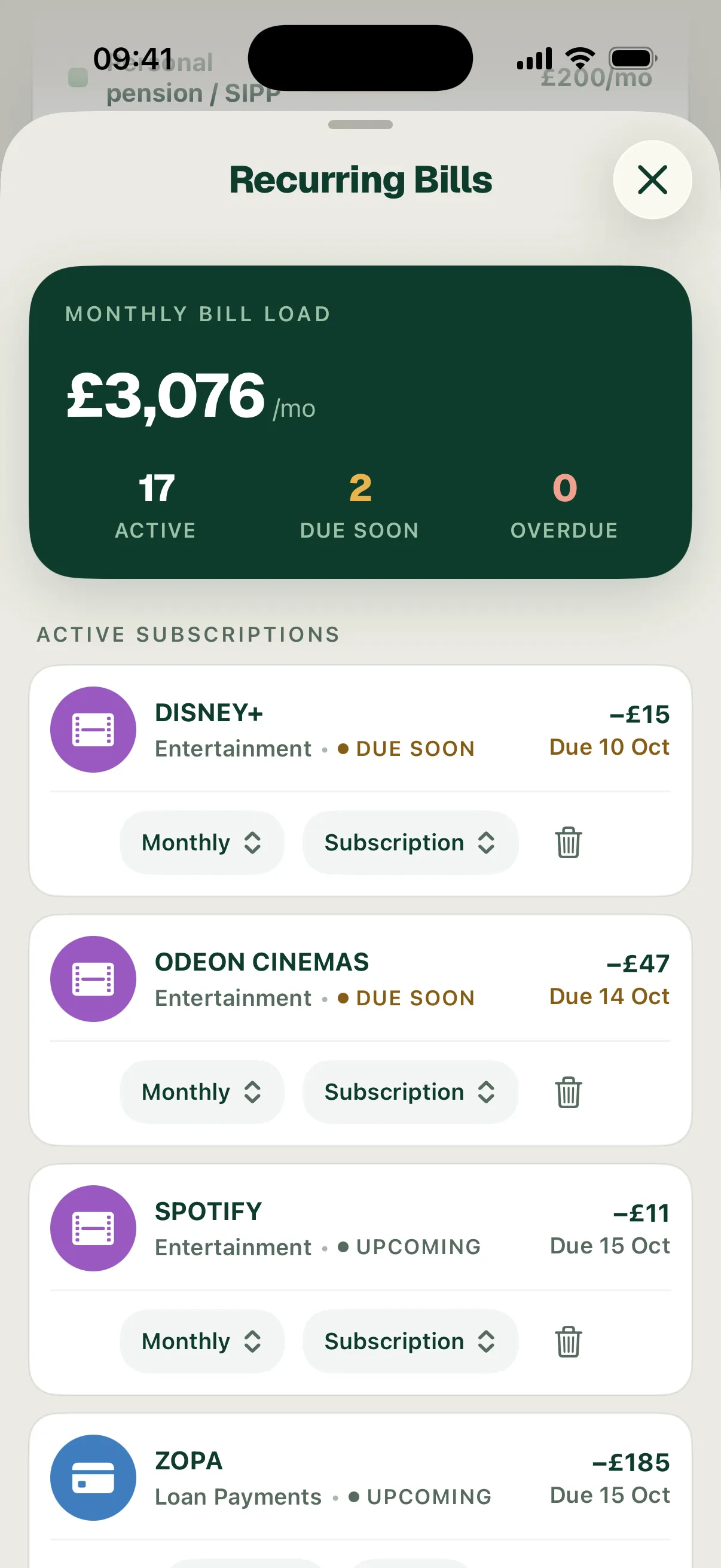
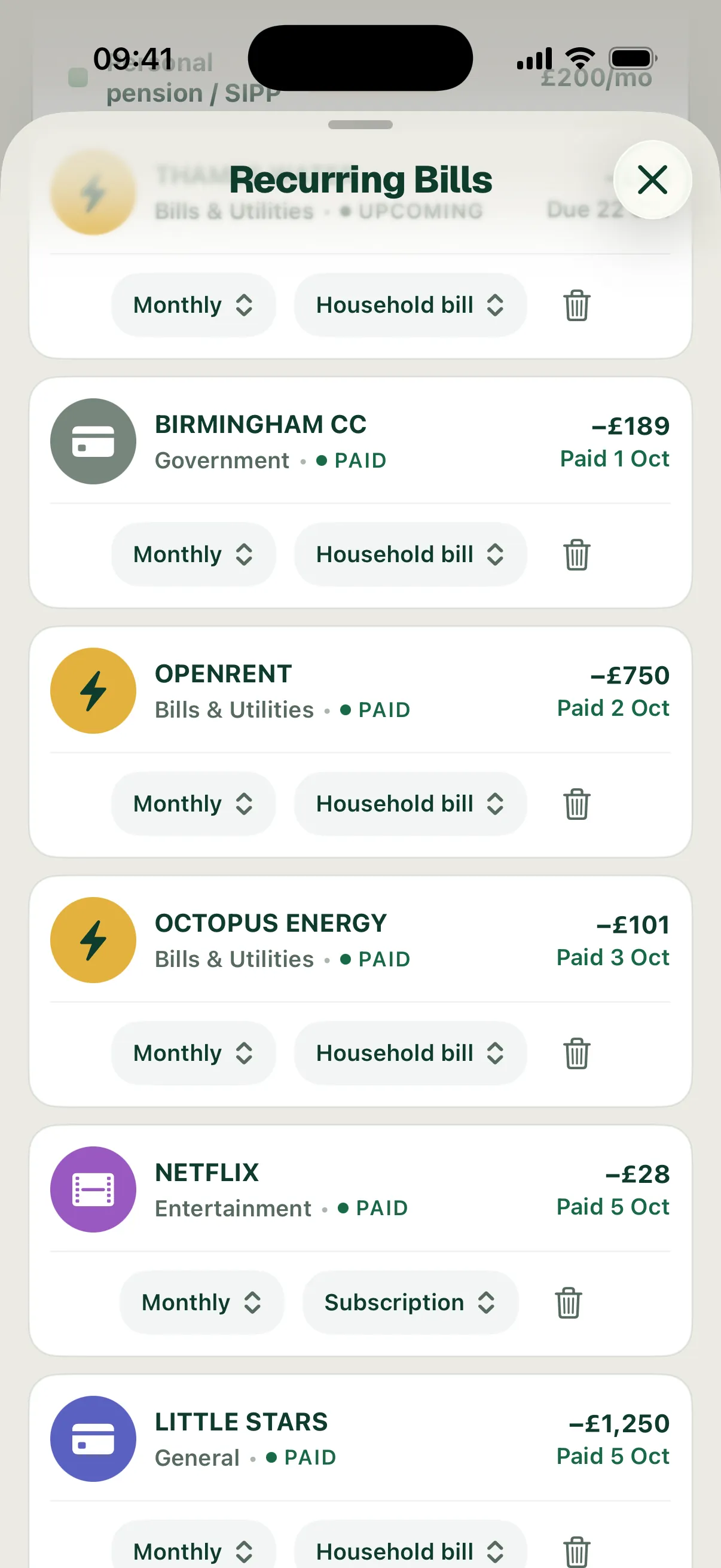
Recurring Bills opens with your monthly bill load (£3,076 a month in the example) and counts of Active, Due soon and Overdue bills. Each bill then shows its name, category, status, amount and date: Due soon, Upcoming or Overdue with its due date, or Paid with the date it went out.
Overdue means the due date has passed and Surplus hasn’t seen a payment linked to the bill this month. If you know it’s paid, find the payment in Transactions and check it’s linked to the bill.
Fix a bill’s frequency or type
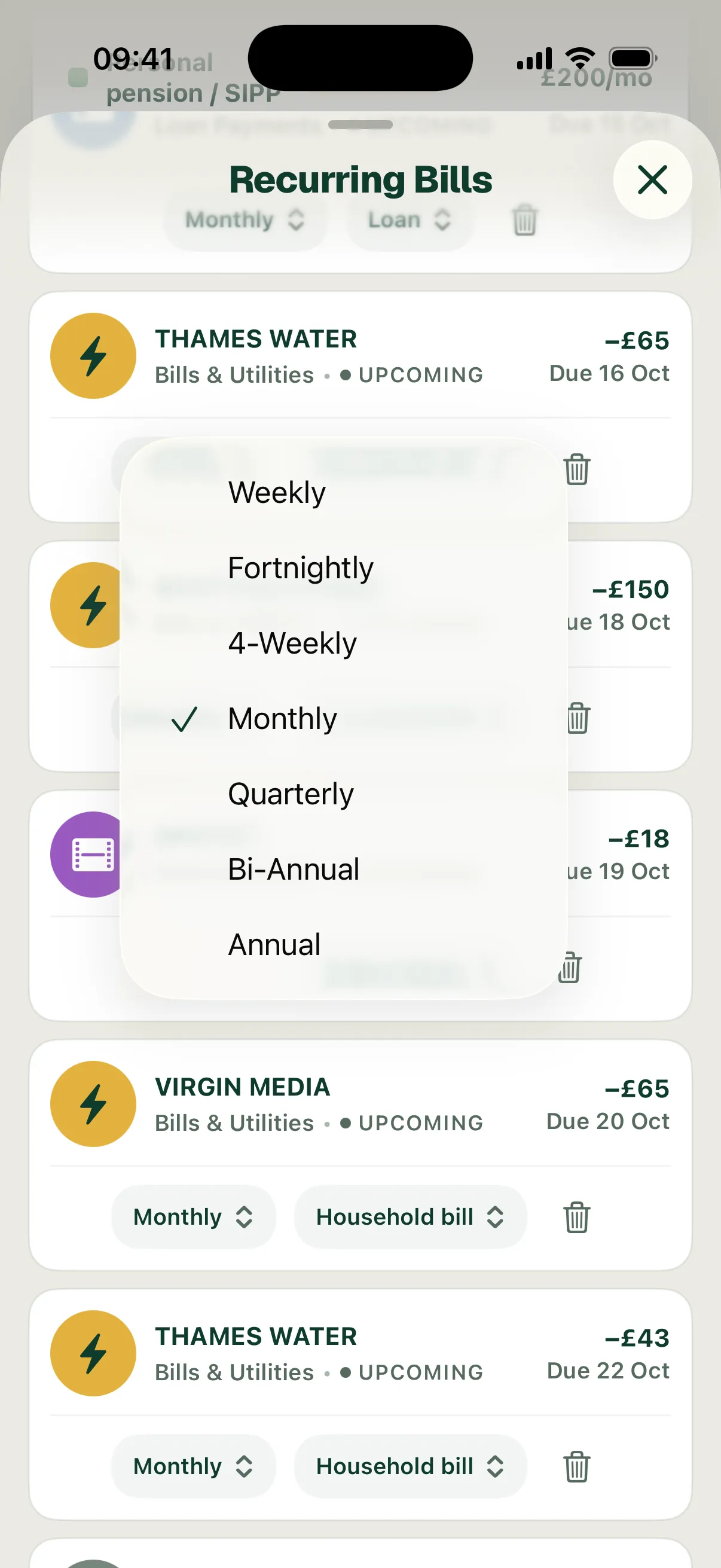
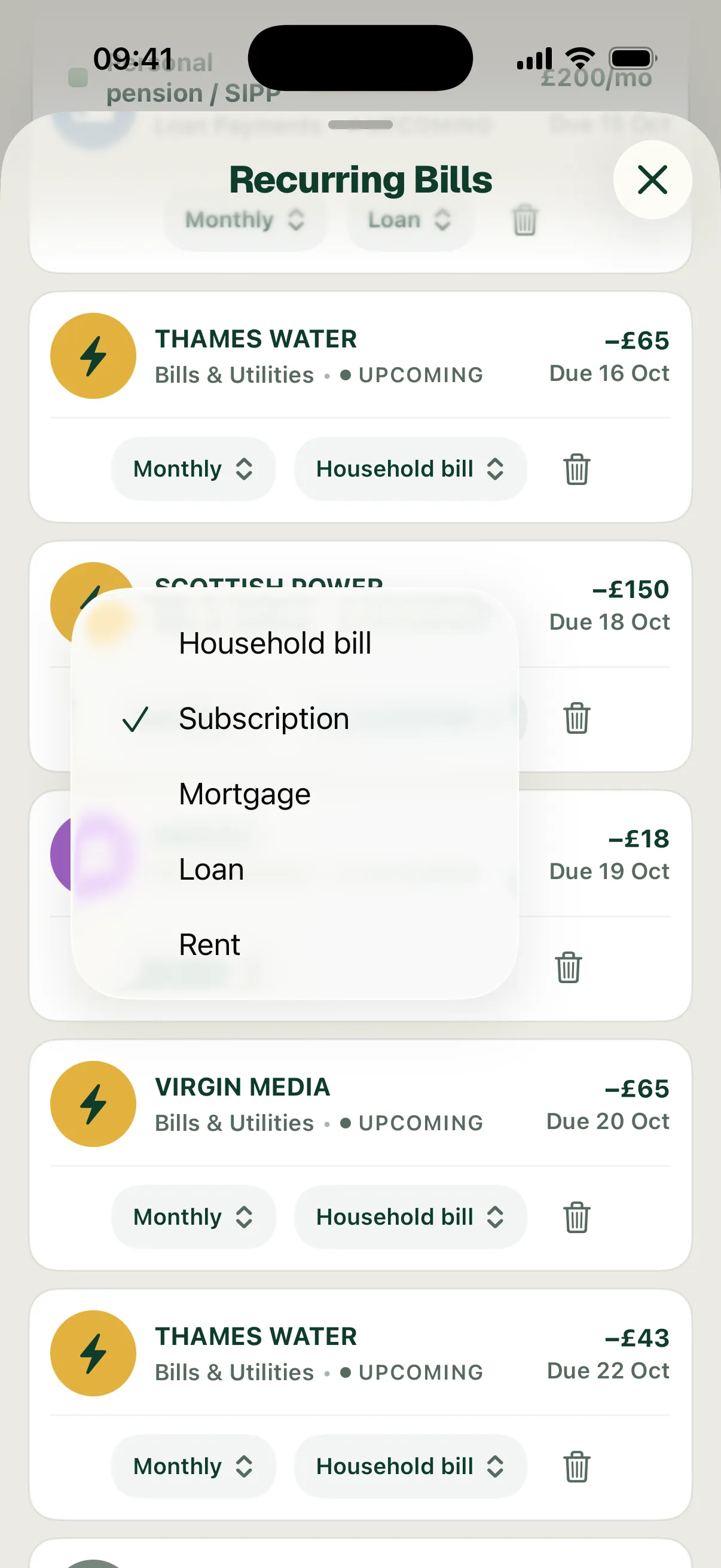
Under each bill are two menus. The first is how often it’s paid: Weekly, Fortnightly, 4-Weekly, Monthly, Quarterly, Bi-Annual or Annual. The second is what kind of bill it is: Household bill, Subscription, Mortgage, Loan or Rent. Choosing a new value saves it straight away. This doesn’t change your plan. Your monthly review offers any change worth updating the plan for.
Stop a bill or turn it back on
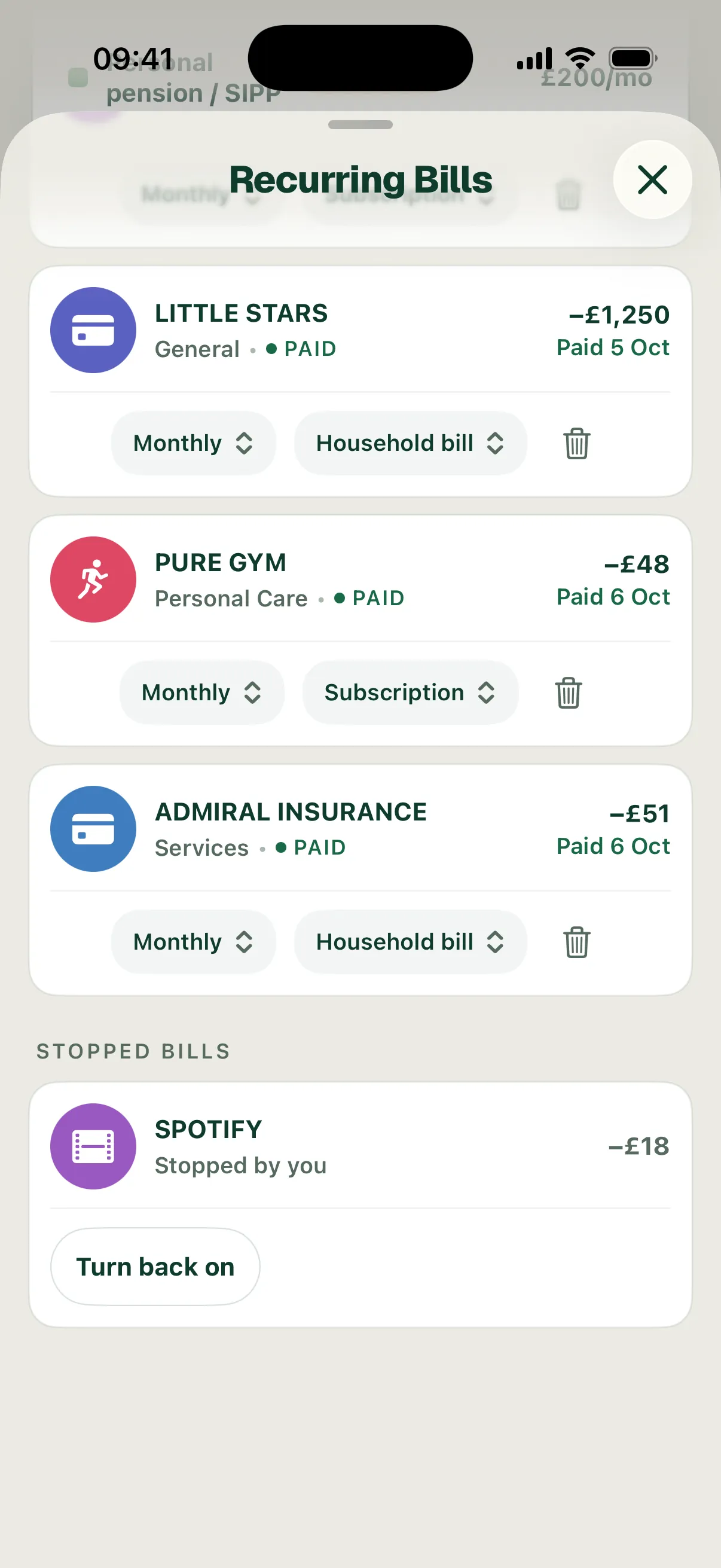
Use the bin beside a bill when it has ended, for example a subscription you’ve cancelled. It stops straight away, without a confirmation. While it’s stopped, all its payments, including past ones, are unlinked from it and count as Discretionary spending. Your plan keeps the bill until your monthly review, which offers to take it out.
Stopped bills appear under Stopped bills at the bottom of the list, marked Stopped by you. Bills Surplus hasn’t seen for a while appear there too, marked Not seen since and a date. Choose Turn back on if you stopped one by mistake. It goes back to your active bills with its payments linked again. Your monthly review then no longer offers to take it out.
In the example, stopping SPOTIFY £18 dropped the bill load to £3,057 a month and the active count to 16. Safe to spend didn’t change, because the plan still included the bill. Turning it back on restored both.
Change a bill’s amount
You can’t edit a bill’s amount in this list. To change what your plan sets aside for a bill, use Step 5 of your surplus setup. When Surplus spots a price change, your monthly review offers the new amount for you to accept or skip.
To track a regular payment that isn’t a bill yet, open it in Transactions and turn on Mark as recurring bill. See Edit a transaction.