Edit a transaction
Fix a category, mark a bill, pay from a virtual bucket or set your share before you save.
Screenshots use fictional accounts and example amounts. Select any image to open it full size.
What the edit sheet is for
Your bank tells Surplus the amount, the date and who you paid. It can’t tell Surplus what a payment was for or whether it belongs in this month’s spending. The edit sheet is where you tell it, so Safe to spend, your bills and your tracking match what really happened.
Open it when:
- A payment is in the wrong category, for example a restaurant filed as shopping.
- You paid for something from money you’d already set aside, like a bill covered by savings. It shouldn’t eat into this month’s spending.
- Money left your account but you still own it, like a transfer to savings Surplus can’t see.
- A regular payment should be tracked as a bill, or a bill has stopped.
- You share money with a partner and a payment’s split is wrong.
The sheet never changes the amount, the date or the account. Those always come from your bank.
Open a transaction
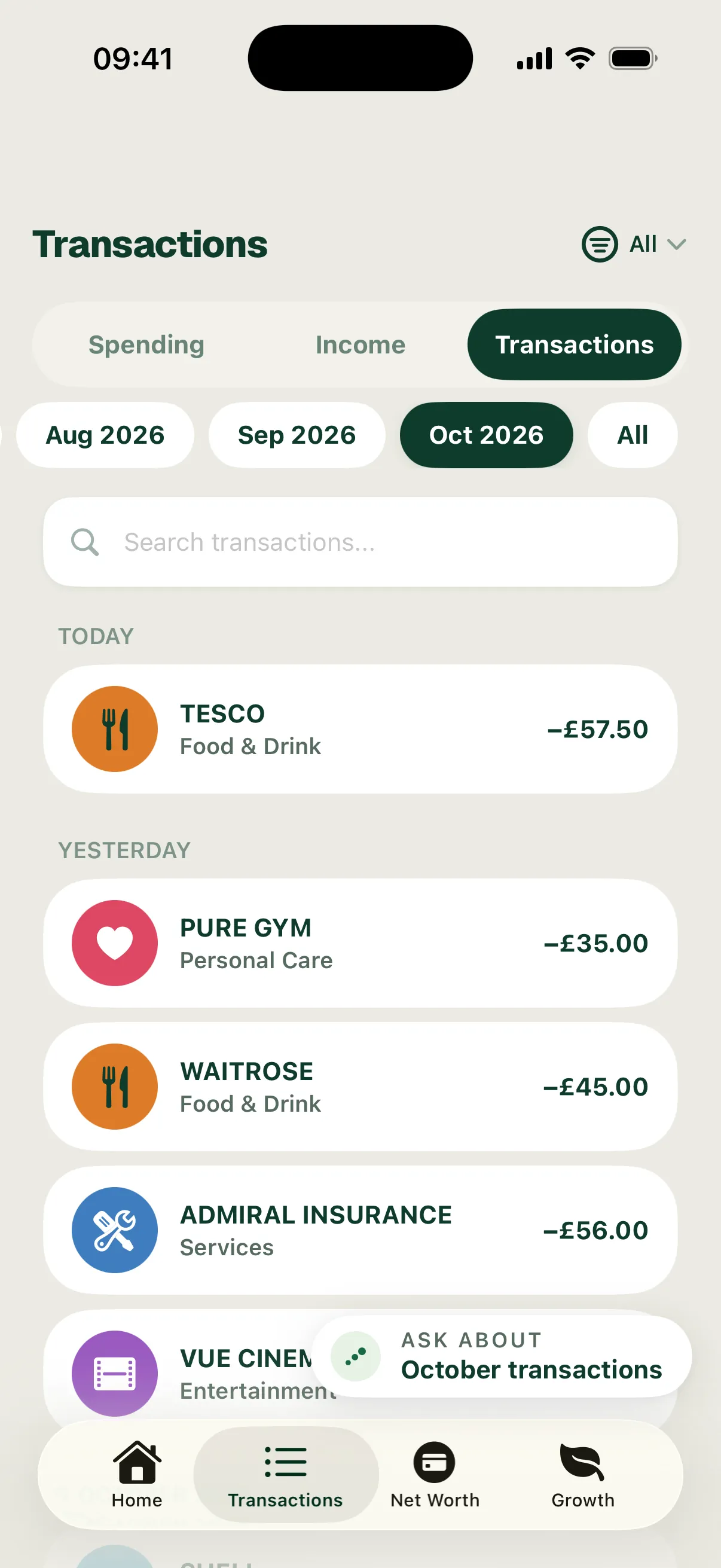
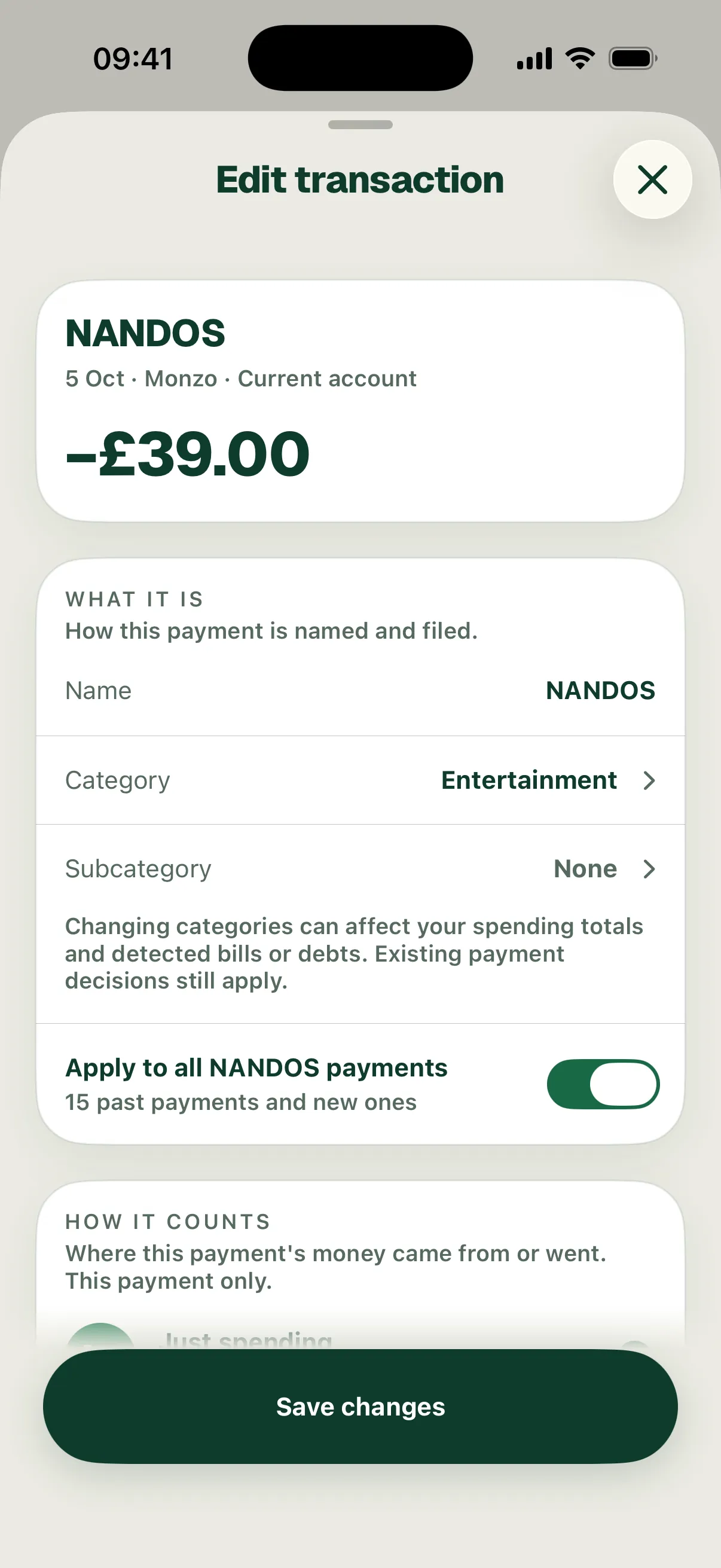
Open Transactions, choose the Transactions list and tap any payment. The Edit transaction sheet opens with the payment at the top: who you paid, the date, the account and the amount. You can also open it from a category, a merchant or your income list.
The sheet has up to five parts: What it is, How it counts, Bill, Your share and When you save. Which ones you see depends on the payment.
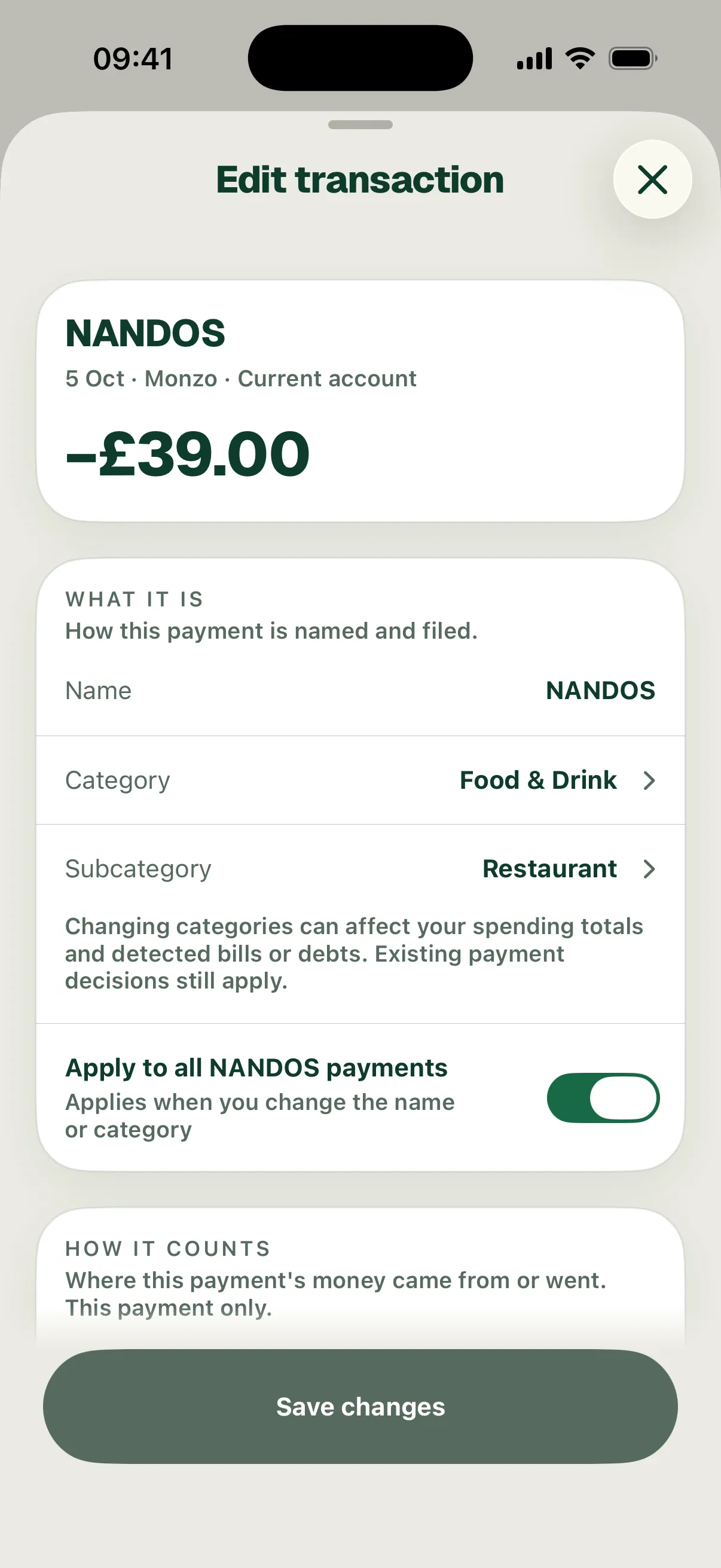
What it is: the name and category
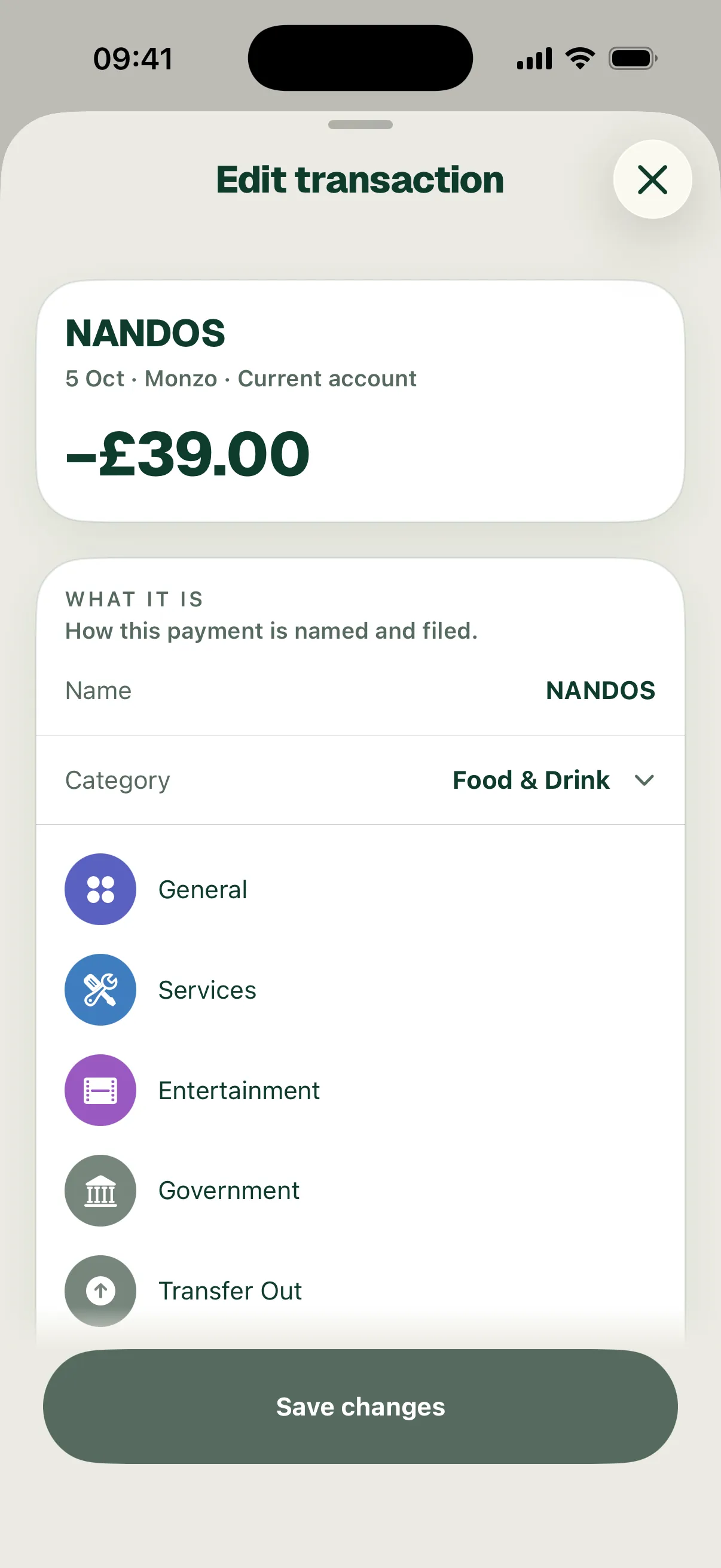
What it is covers how the payment is named and filed. Change the Name, Category or Subcategory here. You can add your own subcategory at the bottom of a subcategory list.
Apply to all copies the new name and category to every payment from the same merchant, past and future. It’s on by default. Once you change something, the line under it counts them, for example 15 past payments and new ones for NANDOS. Turn it off to change this payment only.
Apply to all only ever carries the name, category and subcategory. It never copies how a payment counts. It doesn’t stop a bill or change its type either.
How it counts: spending or a virtual bucket
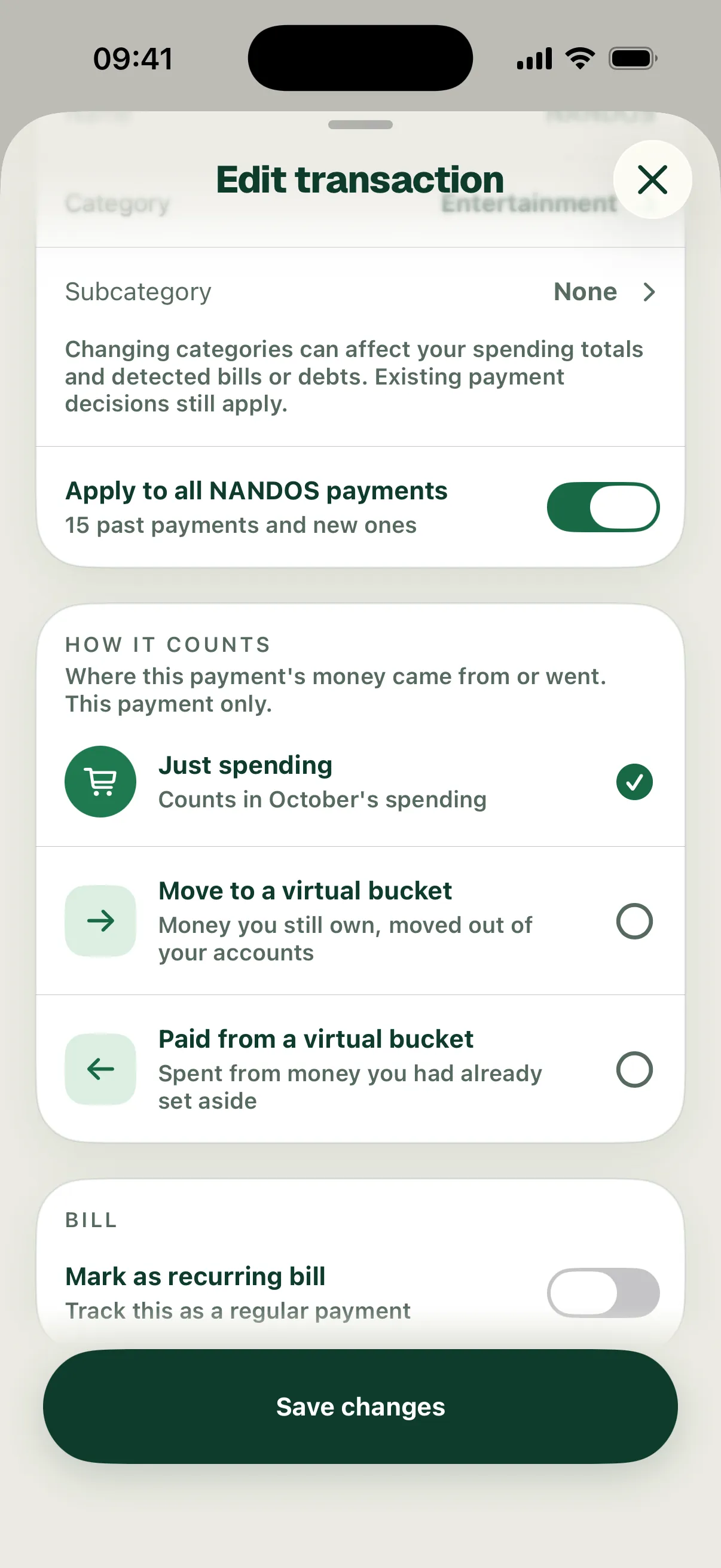
How it counts says where the payment’s money came from or went. It always applies to this payment only.
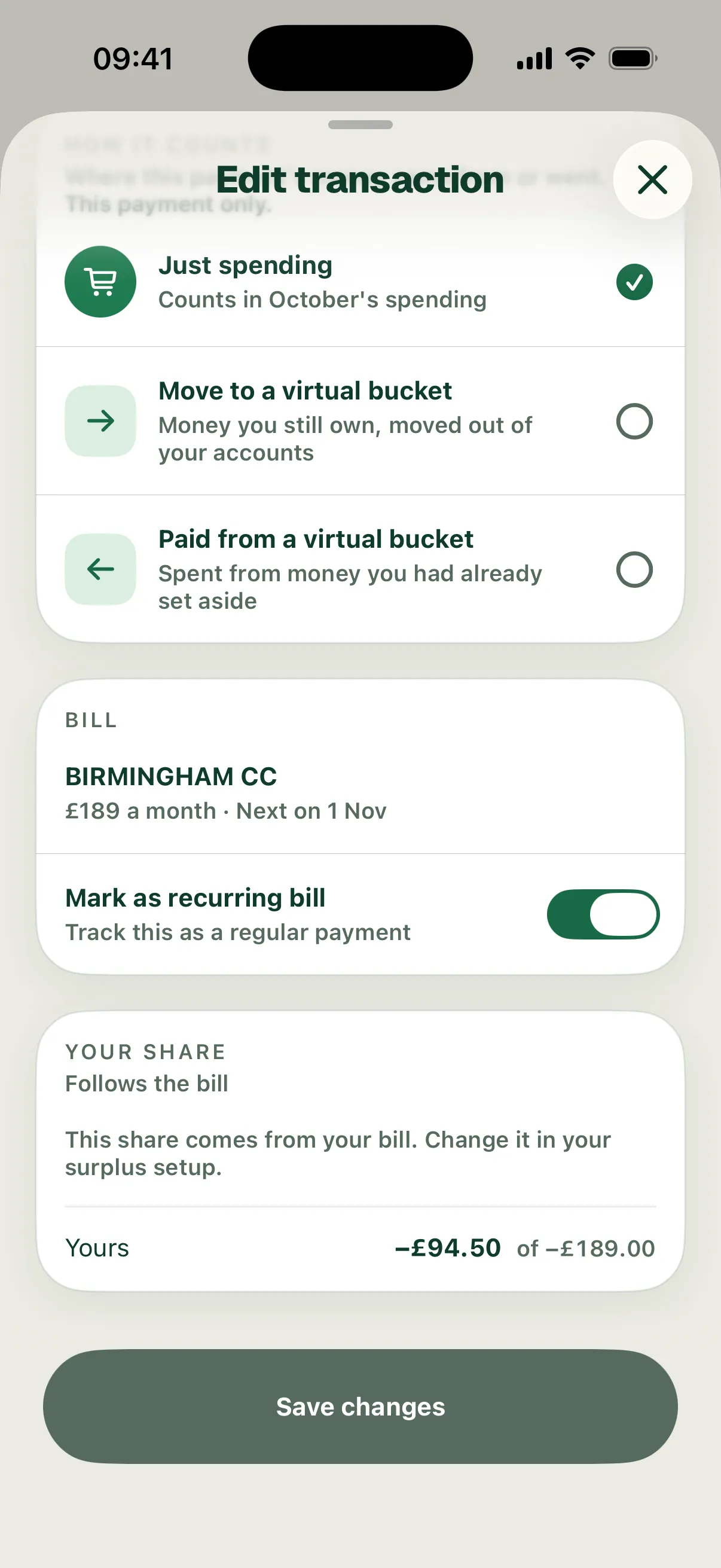
- Just spending: the default. The payment counts in this month’s spending.
- Move to a virtual bucket: money you still own, moved out of your accounts. Use it for a transfer to savings or an investment that Surplus can’t see, or a payment towards a loan you track by hand.
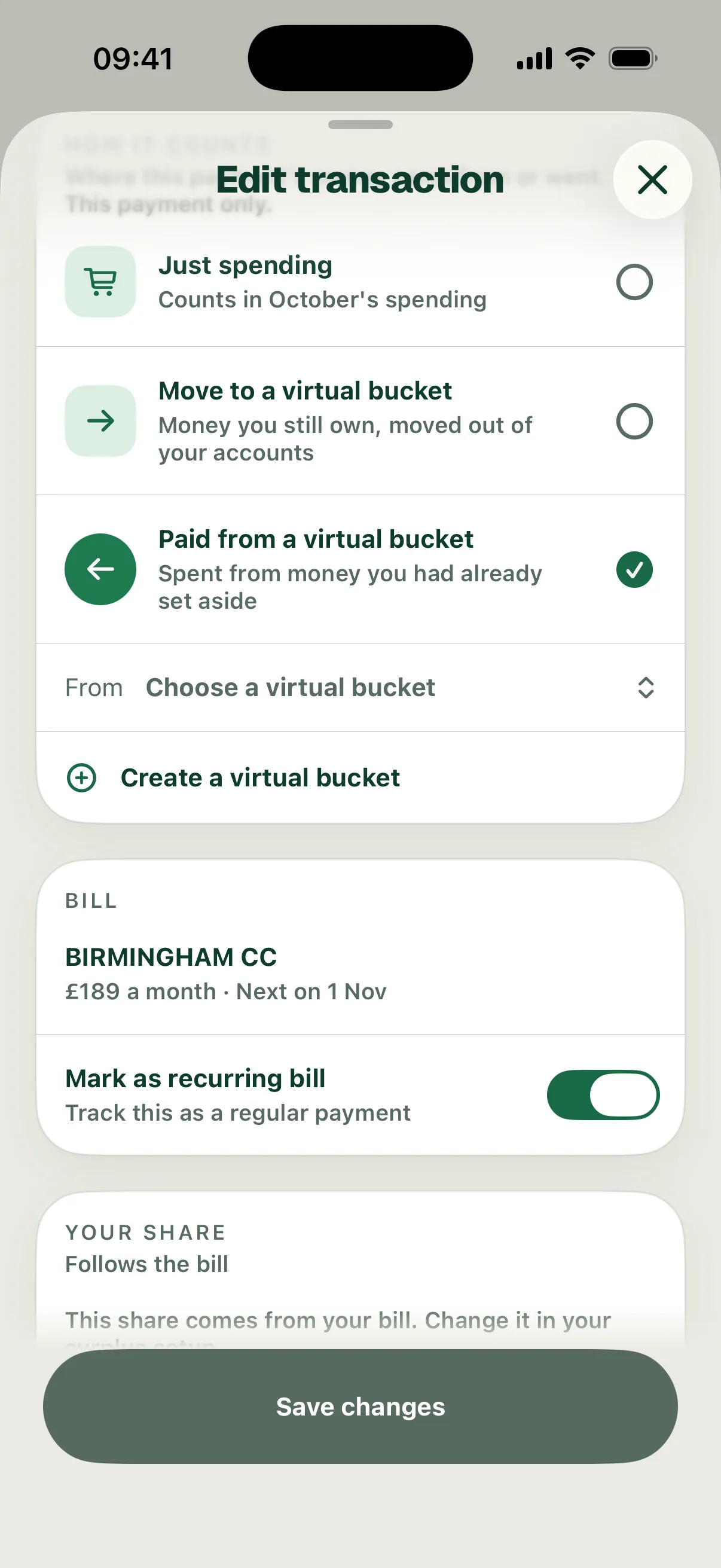
- Paid from a virtual bucket: spending paid for with money you’d already set aside. Use it when savings covered a bill or a big purchase.
With either bucket option, the payment leaves this month’s spending, so it no longer reduces Safe to spend.
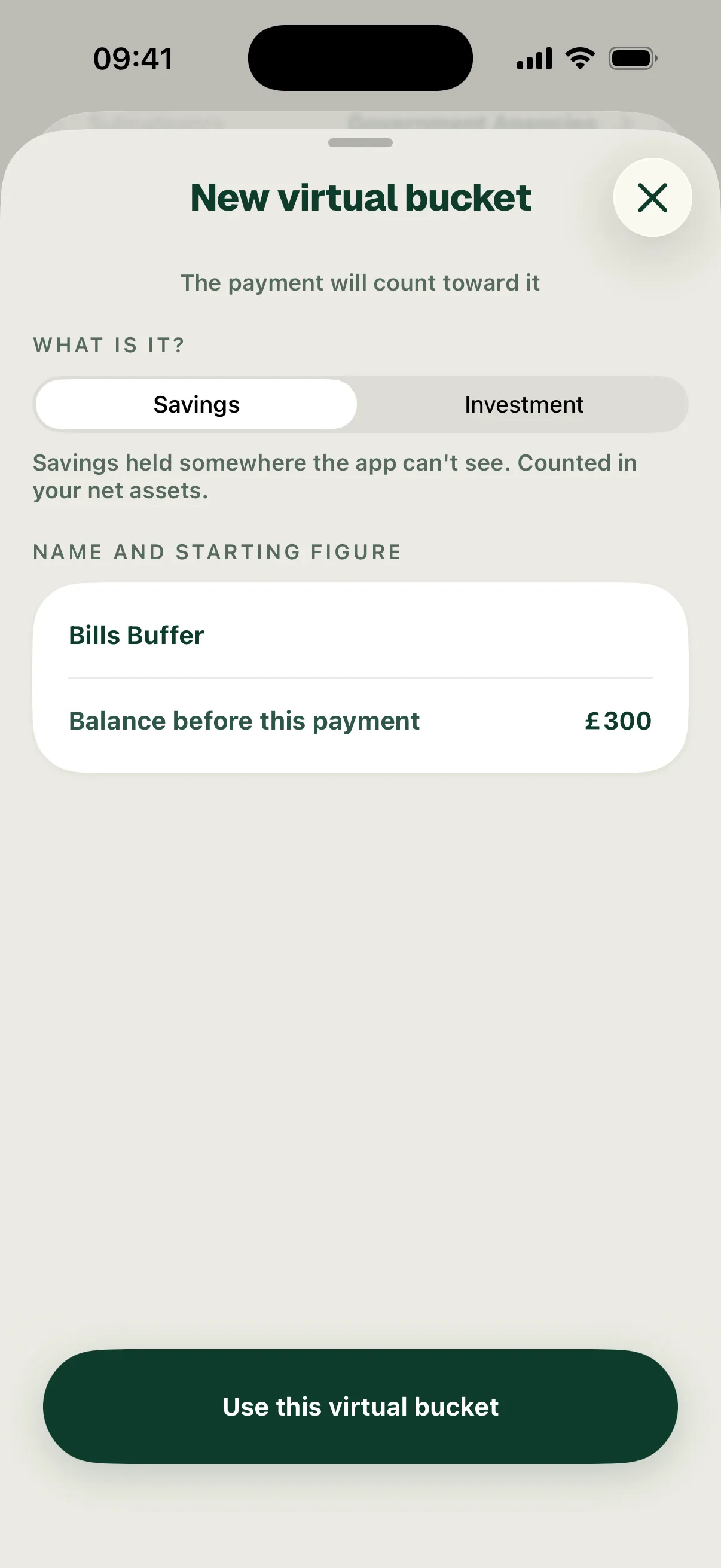
Choose a bucket next to From or To, or choose Create a virtual bucket to set one up there and then. For a new bucket, enter its Balance before this payment and choose Use this virtual bucket. Nothing is created until you save. For Paid from, pick a bucket that held enough on the payment date.
Bill and Your share
When a payment belongs to a bill, the Bill card shows the bill and its plan, for example BIRMINGHAM CC £189 a month · Next on 1 Nov.
- Mark as recurring bill turns the bill on or off. Turning it off stops the whole bill, not just this payment. Your plan keeps it until your monthly review.
- Turning it on for a payment that isn’t a bill yet lets you choose a Bill type, a Frequency and an Expected amount.
- To change an existing bill, change its type or frequency in Recurring bills on Growth. To change what your plan sets aside for it, use Step 5 of your surplus setup, or accept a new amount at your monthly review.
If you share money with a partner, Your share shows how much of the payment counts towards your number, for example Yours −£94.50 of −£189.00. Some shares are set elsewhere. The card says where. A bill’s share “Follows the bill” and is changed in your surplus setup. Where you can change the split, Apply split to future transactions keeps it for later payments too.
When you save: check before you commit
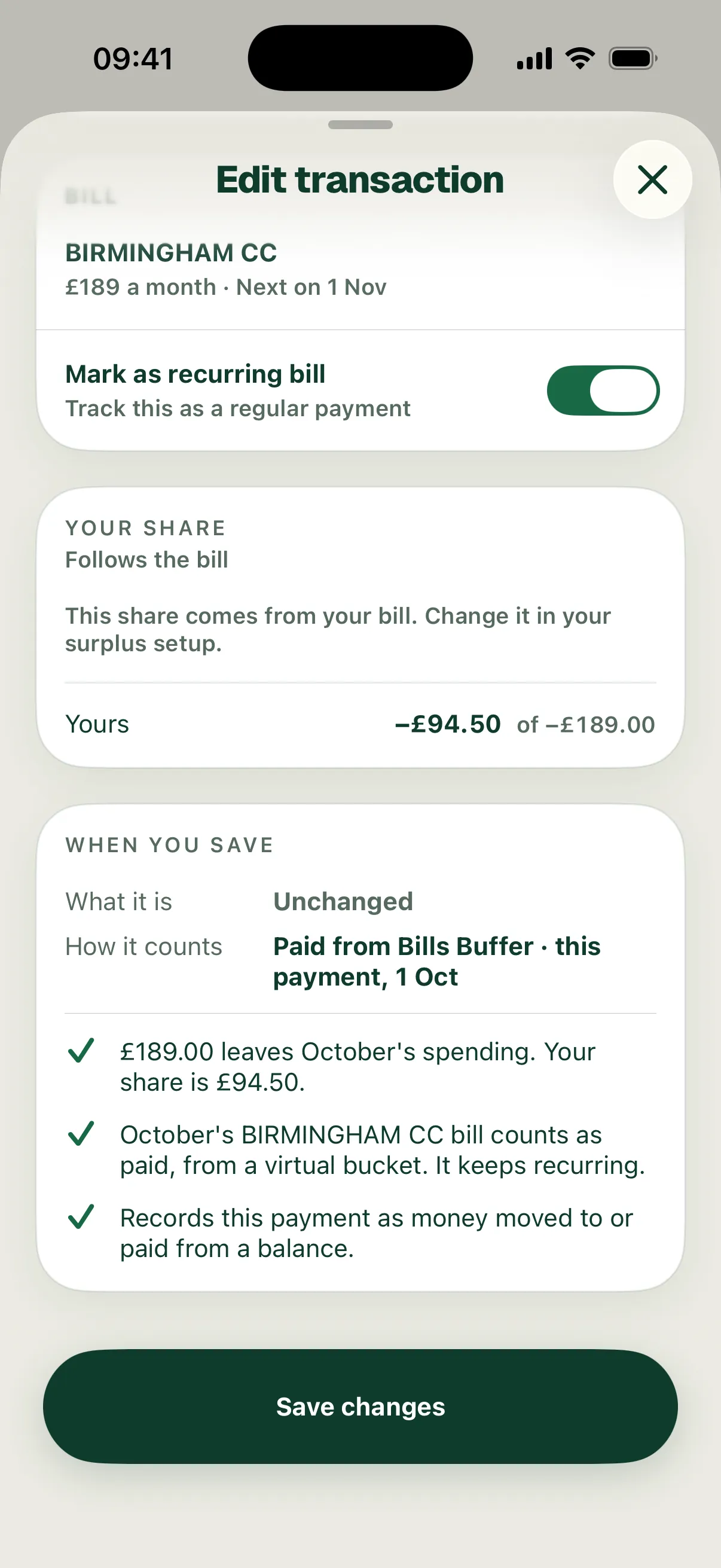
When you save shows the result of your change before anything happens. It lists what it is and how it counts, then one line for each effect: a tick for what will happen, an amber mark for anything that stops or is replaced.
In the example, October’s £189 council tax was paid from savings set aside in a new Bills Buffer bucket:
- “£189.00 leaves October’s spending. Your share is £94.50.”
- “October’s BIRMINGHAM CC bill counts as paid, from a virtual bucket. It keeps recurring.”
A bill paid from a bucket stays on its bill. It counts as paid for the month and keeps recurring, but it no longer comes out of the month’s spending. After saving, Safe to spend rose from £165 to £260. Bills Buffer went from £300 to £111.
Choose Save changes. You’ll see “Saved — totals are still updating” while Safe to spend and your tracking catch up.
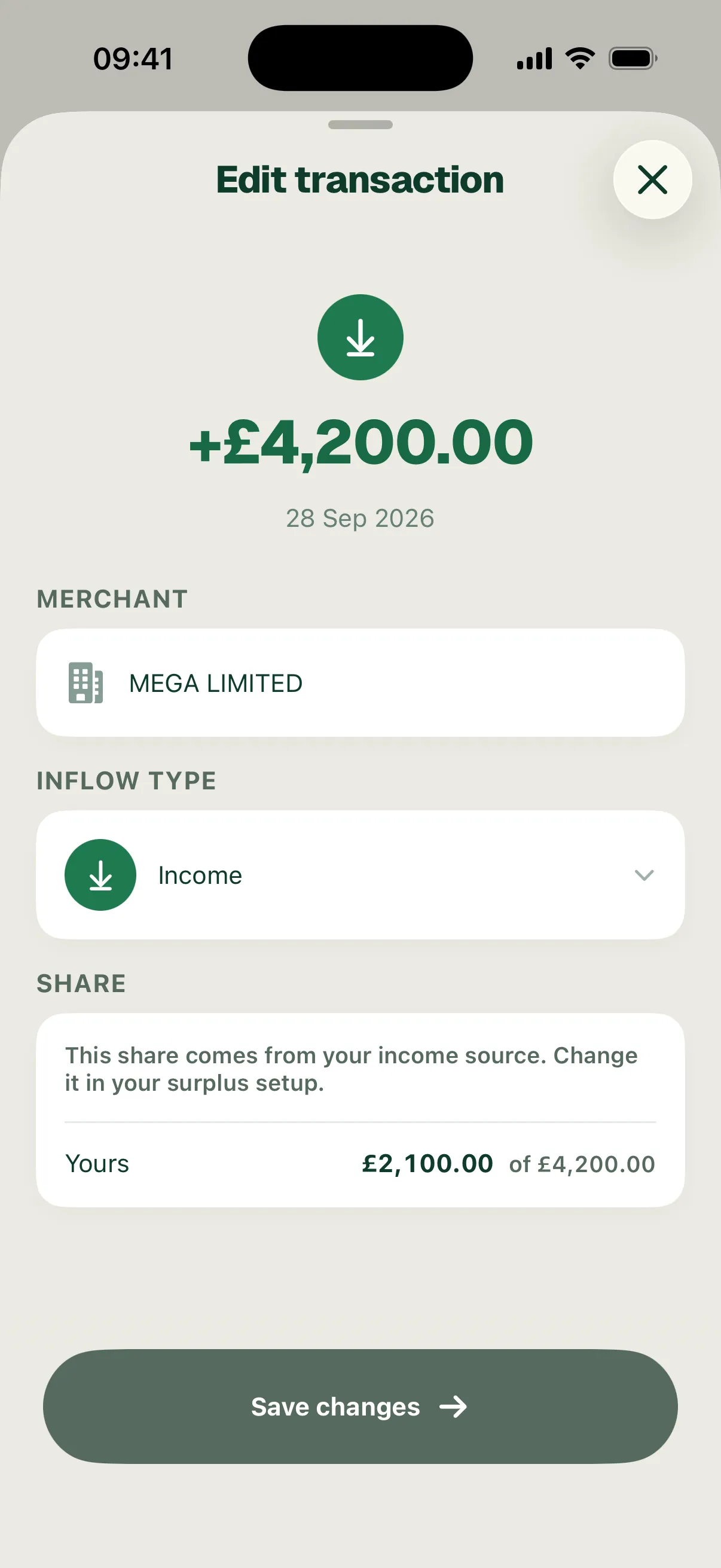
Money in
Payments into your accounts use a simpler sheet. Check the Merchant and choose an Inflow Type: Income, Investment Inflows, Refunds, Other Inflows or Cash Deposit. Marking a salary as Income keeps it in your plan’s income.
An income edit applies to every payment from the same payer. In a shared account, the share of a salary comes from its income source and is changed in your surplus setup.