How to track your surplus performance
Read your Growth overview, compare your progress and review your allocation.
Draft example for this help centre. Screenshots show an earlier Surplus design with example figures; the app may look different.
Before you start
Set up your monthly surplus first. Your plan gives you something to compare with what you actually earn and spend during the month.
This walkthrough uses example figures. The amounts in your own account will be different.
1. Open your Growth overview
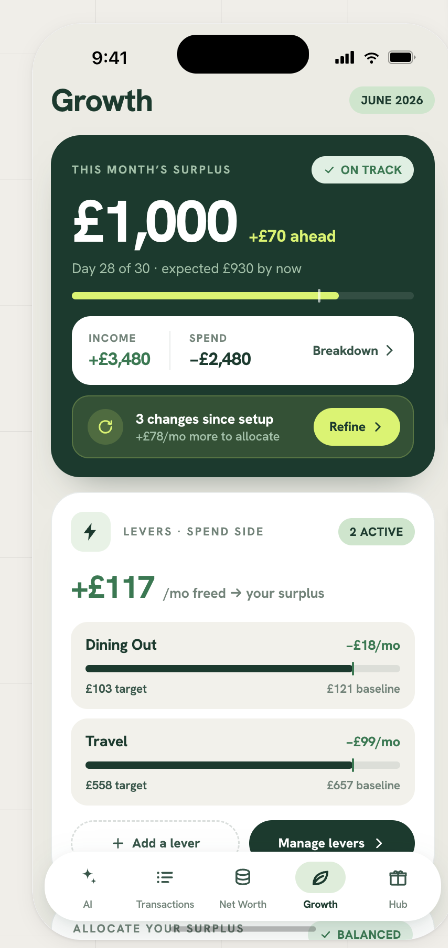
Tap Growth in the bottom navigation. The surplus card brings together your progress for the current month, your income and your spending.
2. Read your progress
Start with the large surplus figure, then check the comparison underneath it.
- £1,000 this month: the example income of £3,480 minus spending of £2,480.
- £70 ahead: the example surplus is £70 above the £930 expected at this point in the month.
- Day 28 of 30: the comparison is tied to progress through the month.
Use Breakdown to explore what is contributing to the number. If the card flags changes since setup, Refine is the place to review your plan.
3. Review your allocation
Scroll down to Allocate your surplus. This shows how your planned surplus is split between the things you’re working towards.
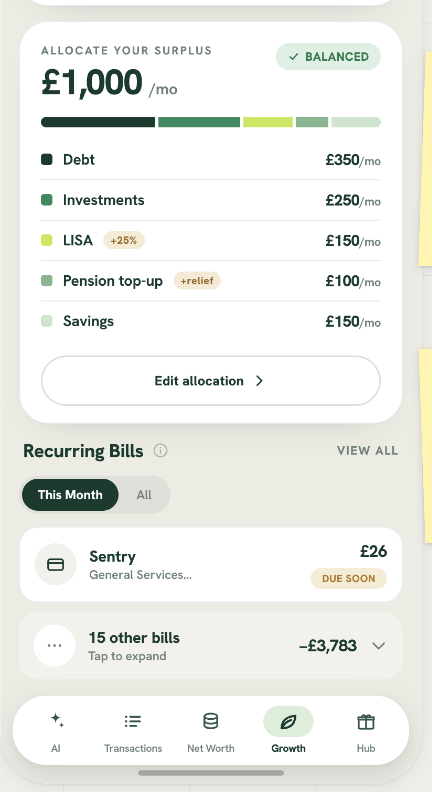
In this example, the five allocations add up to £1,000 a month. Select Edit allocation when you want to review that split.
An allocation is part of your plan. It does not mean money has been transferred between your accounts.
What to do next
Check in as the month progresses. If your circumstances change, revisit your plan so it continues to reflect the income, bills and spending you expect.