Use virtual buckets
Add savings and investments Surplus can't see, keep them up to date and pay from them.
Screenshots use fictional accounts and example amounts. Select any image to open it full size.
What a virtual bucket is
A virtual bucket is savings or an investment you hold somewhere Surplus can’t see. Think of a workplace ISA, a pension, savings at a bank you haven’t linked or an emergency fund kept elsewhere. Adding it gives Surplus the full picture:
- Net worth counts it, so your net assets include money outside your linked accounts.
- Transactions can be moved to it or paid from it, so saving or spending set-aside money doesn’t distort the month.
- Allocate can plan part of your surplus for it each month.
Money set aside inside a linked account is different. Surplus calls that an earmark and shows it under its account. Only Allocate creates earmarks, when you add a goal that stays in a linked account.
Add a virtual bucket
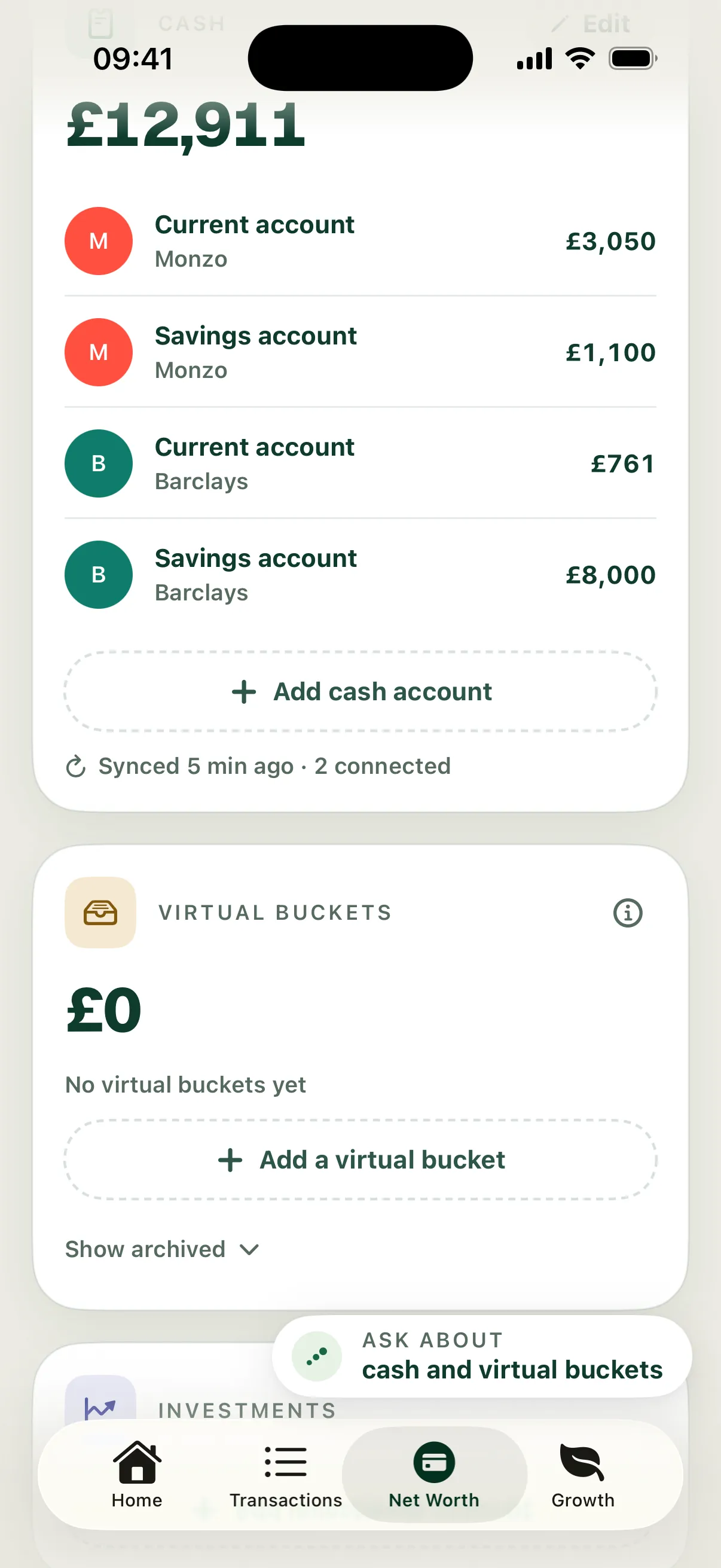
- Open Net Worth and scroll to Virtual buckets.
- Choose Add a virtual bucket.
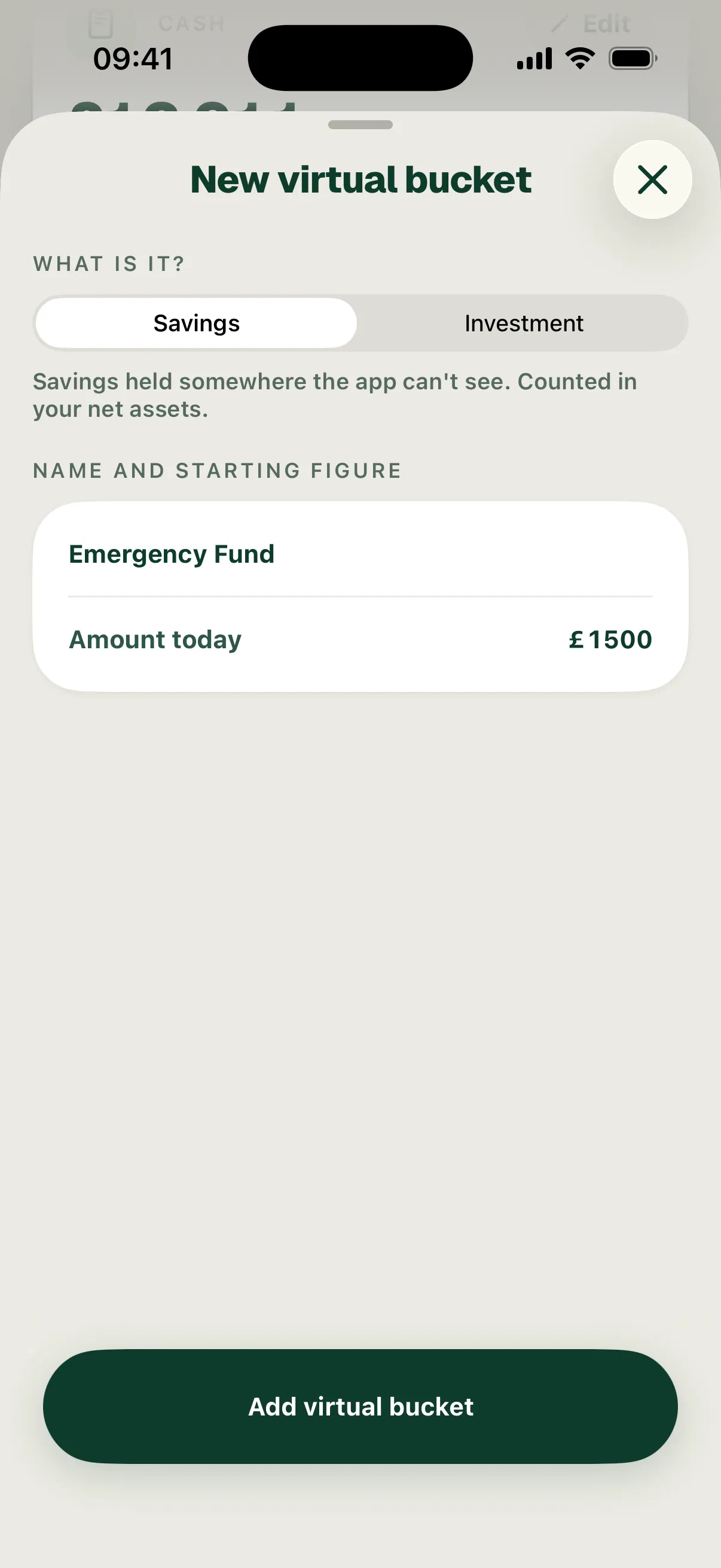
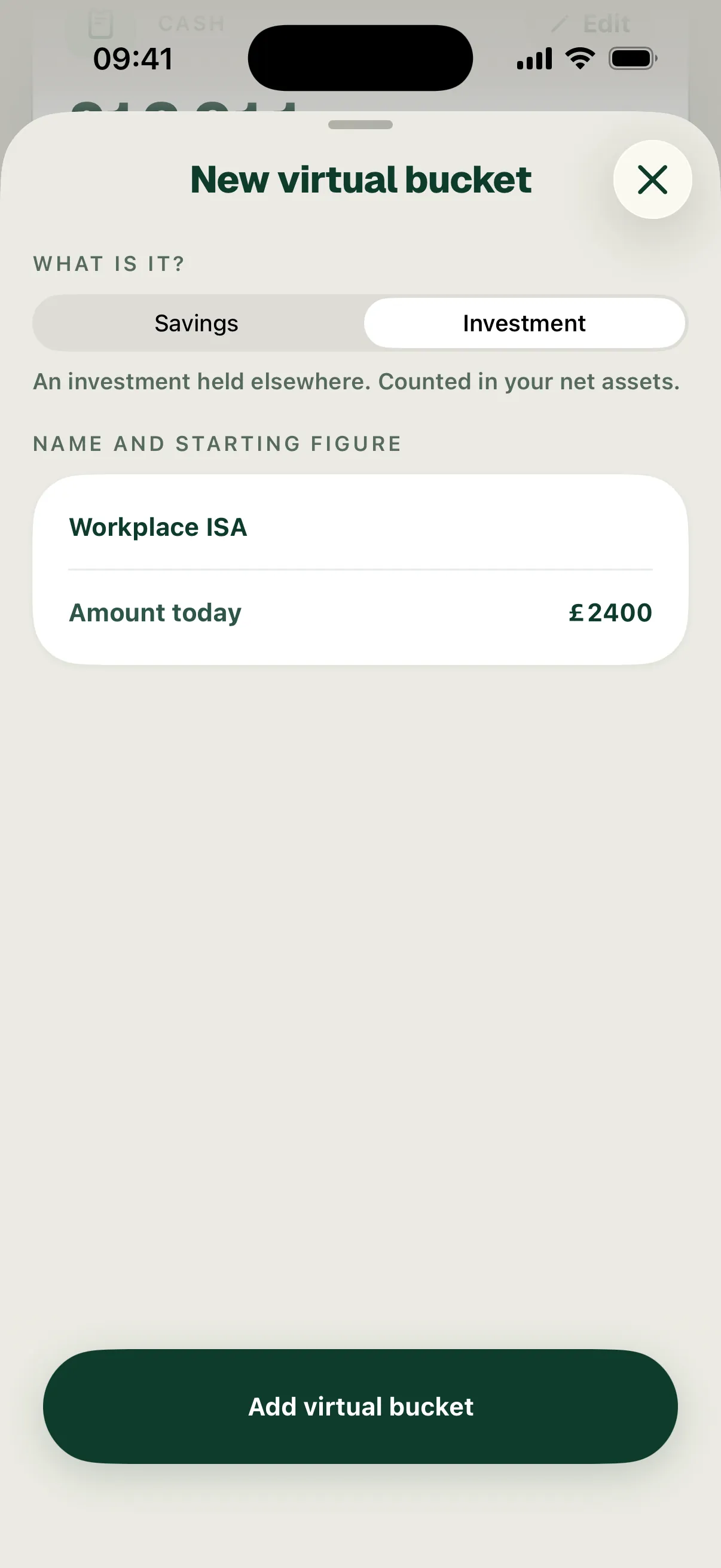
- Under What is it?, choose Savings or Investment.
- Give it a Name and enter the Amount today.
- Choose Add virtual bucket.
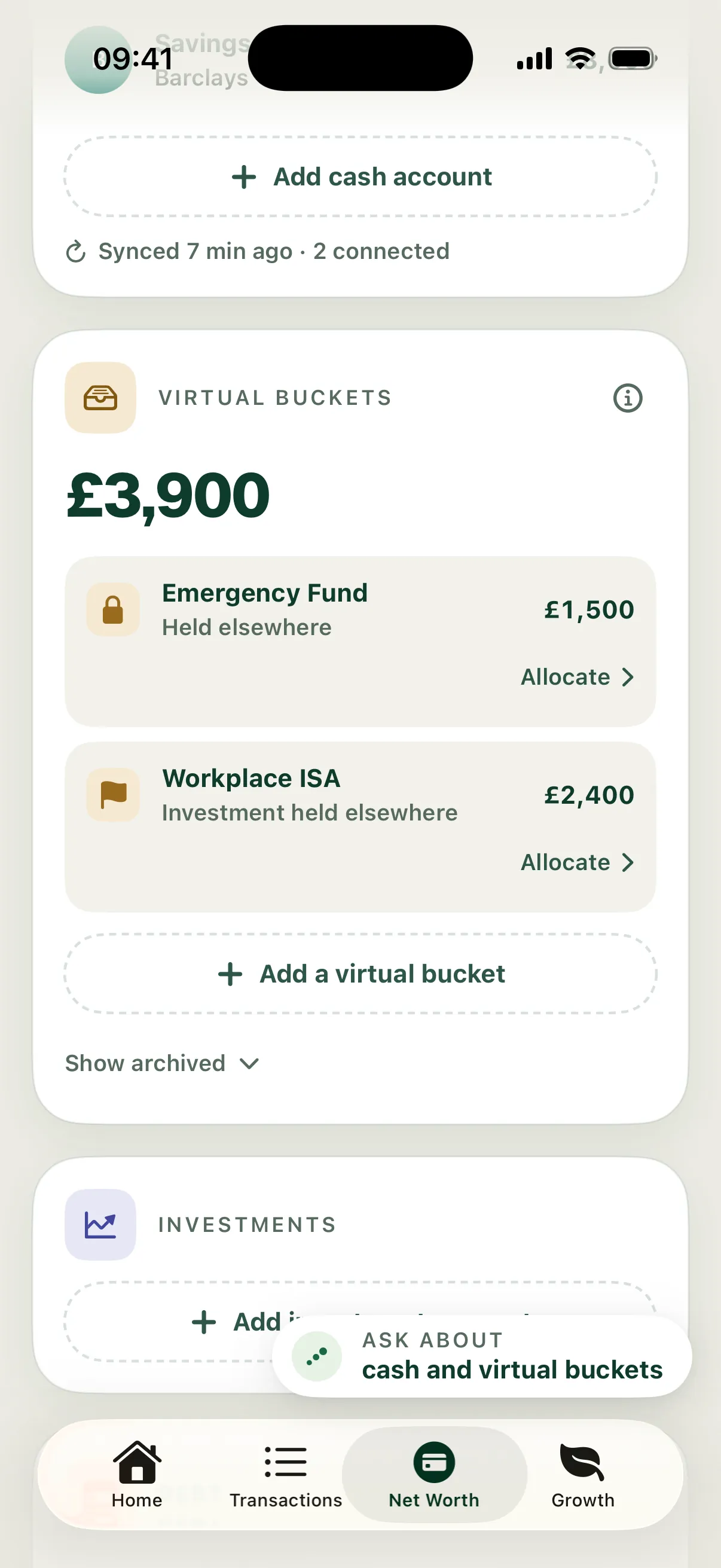
The example adds Emergency Fund (£1,500 of savings) and Workplace ISA (a £2,400 investment). The card then reads £3,900 and net worth rises from £12,911 to £16,811.
Update, archive or restore a bucket
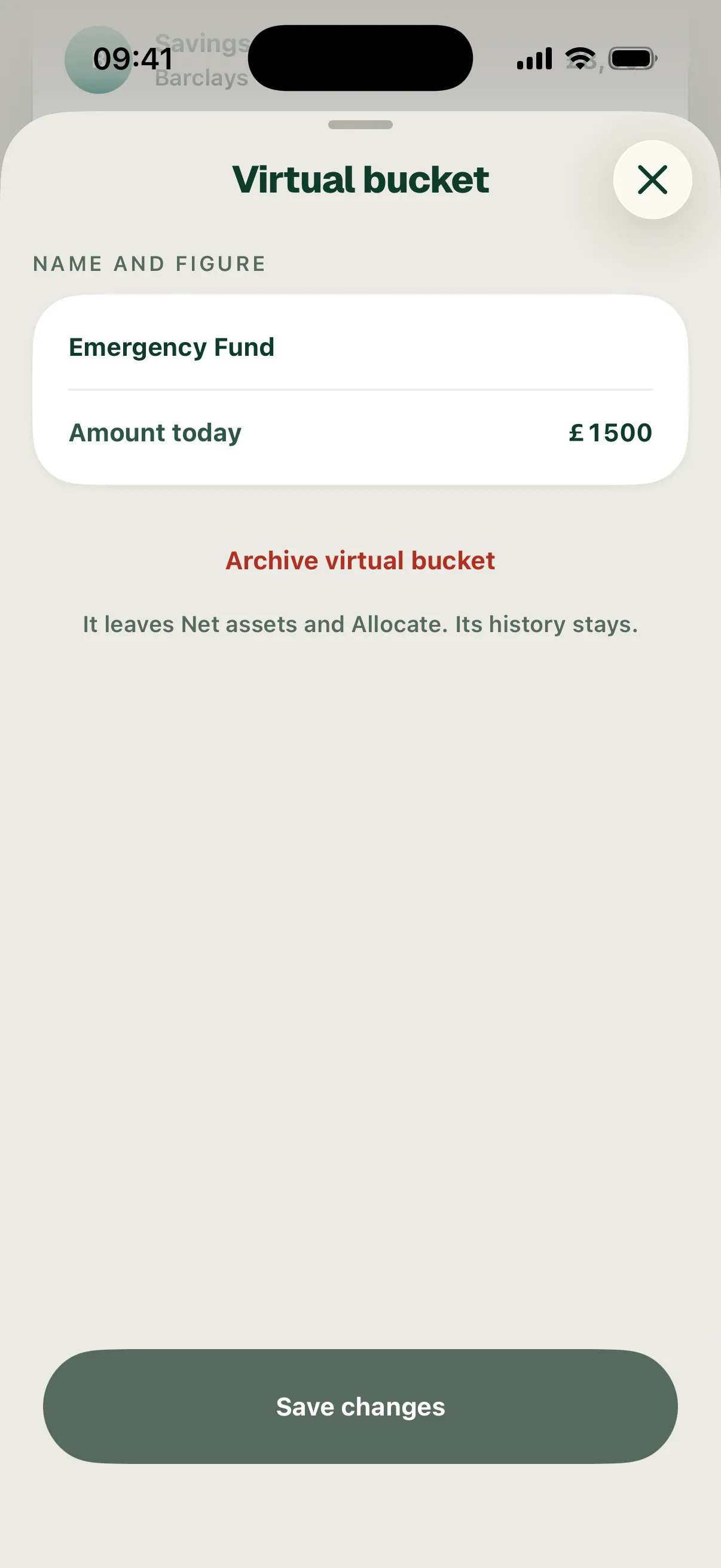
Tap a bucket to rename it or correct its Amount today, for example after you check a statement. Surplus records the correction as one adjustment and keeps the bucket’s history.
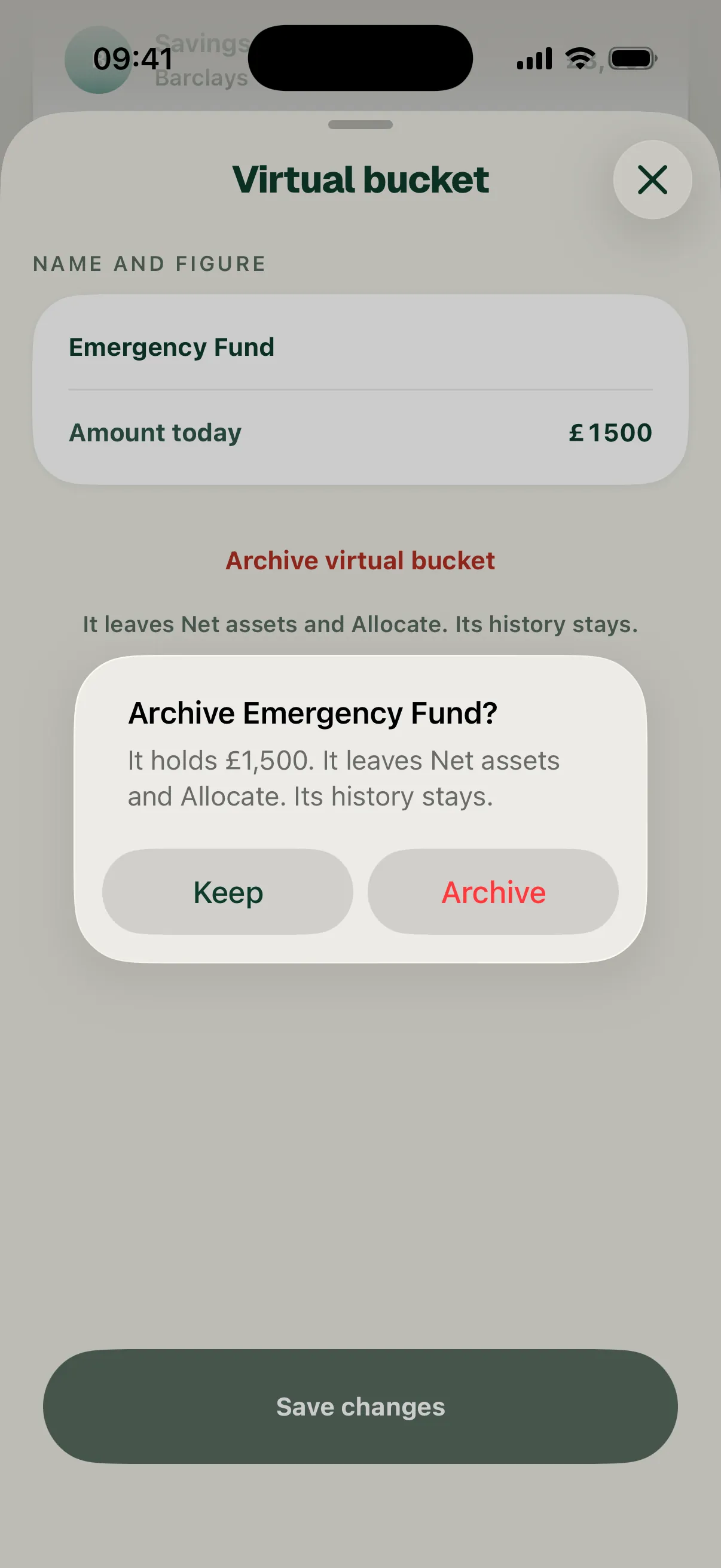
Archive virtual bucket takes it out of net assets and Allocate. If it still holds money or has an Allocate target, Surplus checks first: “Archive Emergency Fund? It holds £1,500.” Choose Keep to change your mind.
Archived buckets sit under Show archived in the Virtual buckets card. Choose Restore to bring one back.
Move money in or pay from a bucket
When a payment involves a bucket, say so in its edit sheet under How it counts:
- Move to a virtual bucket when money left your account but you still own it, like a transfer into the savings account behind your Emergency Fund.
- Paid from a virtual bucket when you spent money you’d already set aside, like a bill covered by savings.
Either way, the payment leaves this month’s spending, so it doesn’t reduce Safe to spend. A bill paid from a bucket stays on its bill and counts as paid for the month.
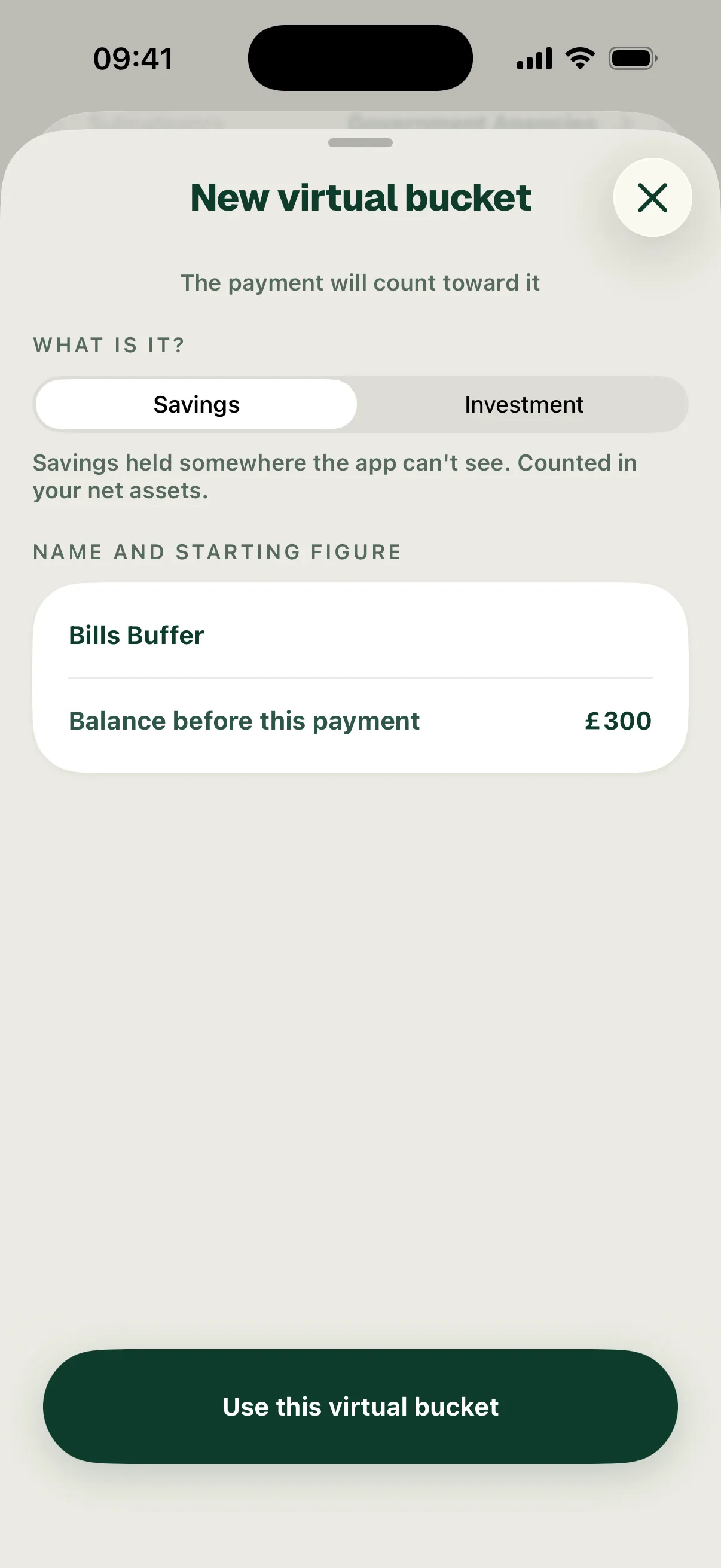
You can also choose Create a virtual bucket right in the edit sheet. Enter its Balance before this payment and choose Use this virtual bucket; it’s created when you save the payment.
In the example, October’s £189 council tax was paid from a new Bills Buffer bucket that held £300. Afterwards Bills Buffer holds £111. See Edit a transaction for the full sheet.
Buckets and Allocate
Each bucket in Net Worth has an Allocate link. It opens Allocate at the row that pays into that bucket, so you can set how much of your monthly surplus goes there. In Allocate, a row linked to one bucket takes that bucket’s name. In the example, the Investments row became Workplace ISA with “£2,400 invested”.
See How to allocate your surplus to split your surplus across your buckets and goals.